ITSM Ticket Categorization and Pre-filling
This feature improves the integration between Wikit Semantics and your ITSM solution (GLPI, IWS, ServiceNow, etc.) by assisting users during ticket creation from the Chat.
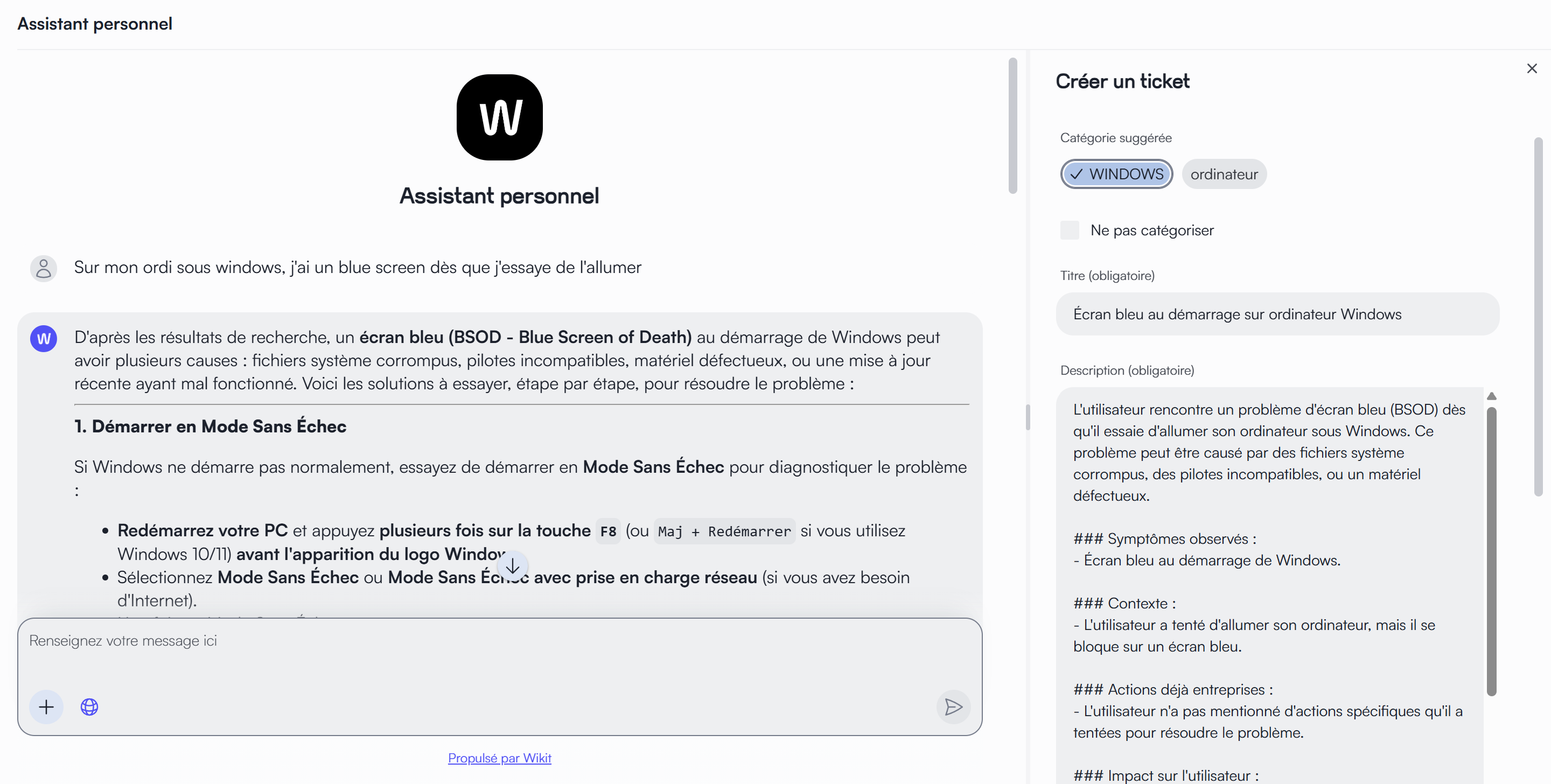
Thanks to AI, the ticket creation form is automatically pre-filled (Title, Description) and, depending on your configuration, a relevant category is suggested based on the conversation.
Prerequisites
Before configuring this feature in your administration console, an action is required from the Wikit team.
1. Request the creation of the Service App
The artificial intelligence engine that analyzes the conversation to generate suggestions is a "Service App". It must be configured by a Wikit administrator.
Please contact your Wikit representative to request the creation of this app, specifying the desired mode:
- Partial Mode: The AI pre-fills only the Title and Description of the ticket based on the conversation.
- Full Mode: The AI pre-fills the Title, the Description, and suggests one or several Categories from your category tree configured in Wikit Connect.
2. Configured ITSM Connector
You must have an active ITSM compatible connector configured in Wikit Connect.
Configuring the Category Tree
If you opted for Full Mode, you must define the tree structure that will be used by the AI to classify requests.
Go to Wikit Connect > My connectors > Select your ITSM connector > Categories tab.
Category Creation and Management
You can build your tree manually or via import.
- Add a category: Click the "New category" button.
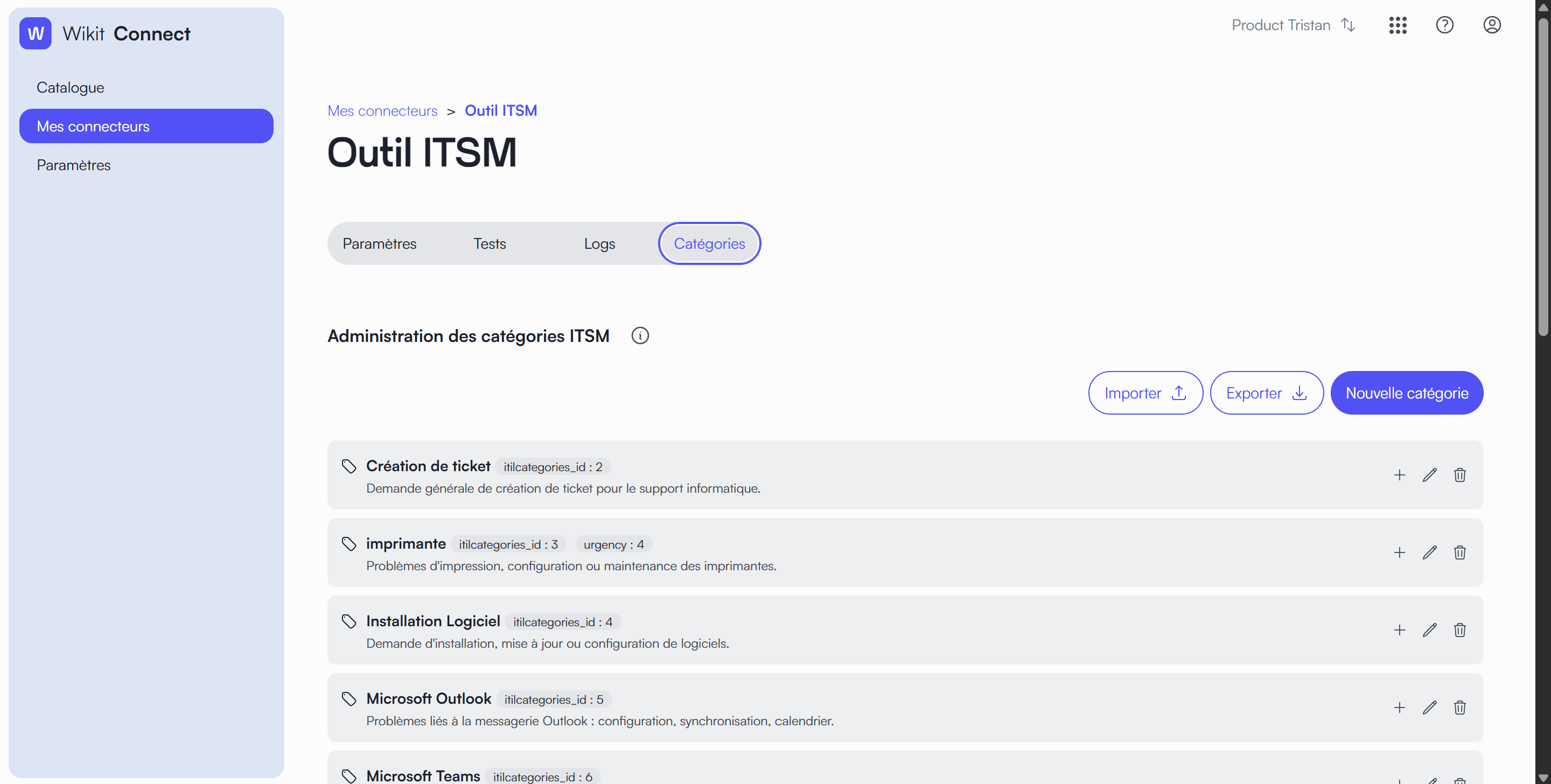
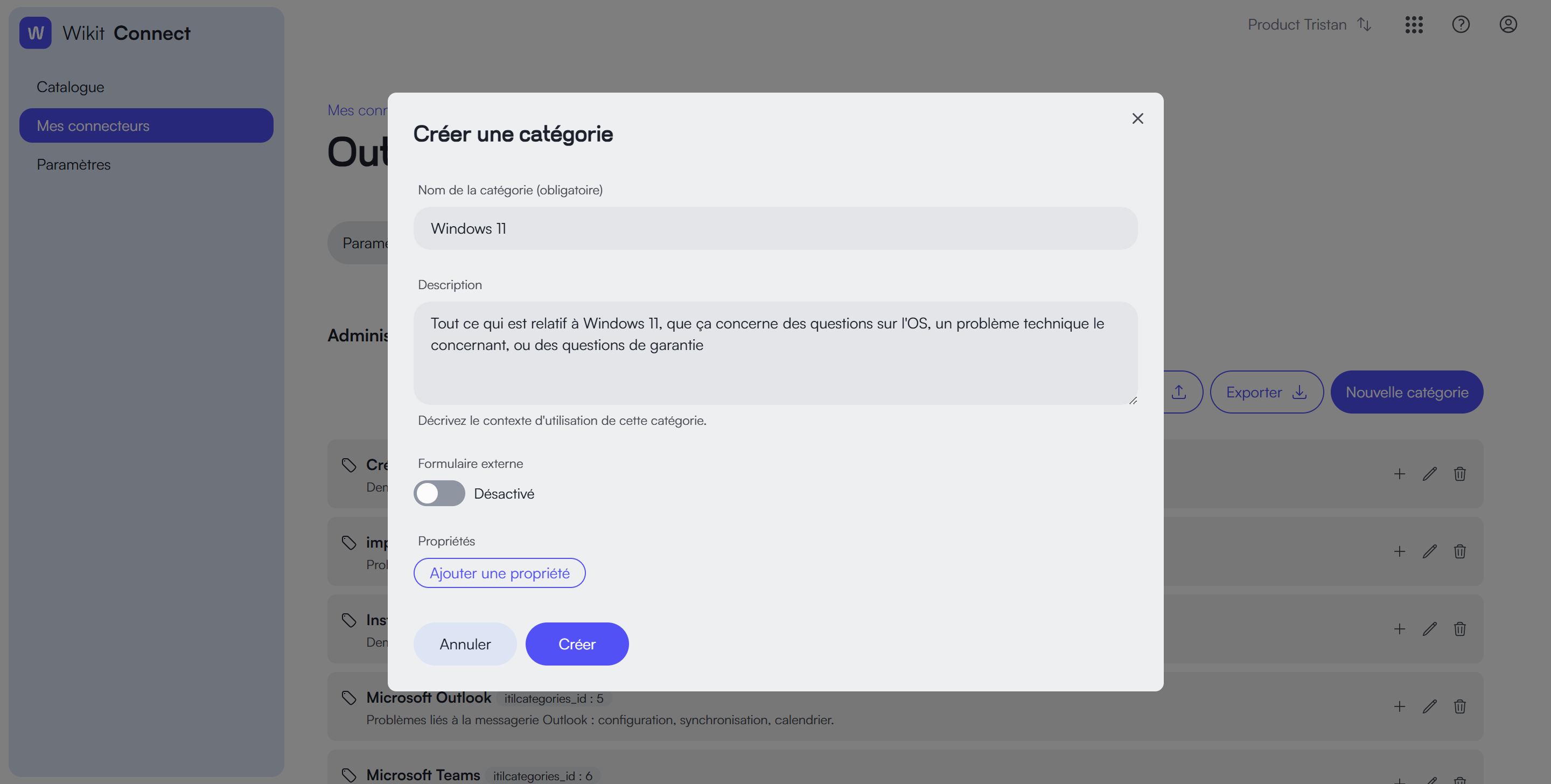
- Define context (Important): Fill in the Description field. This text helps the AI understand when to suggest this category (e.g., "Printing issues, paper jam, empty toner").
- Hierarchy: You can create sub-categories to refine precision (e.g., Hardware > Computer > Windows) by clicking the
+button on a category.
Note: You can use the Import / Export buttons to manage your tree in bulk via a JSON file. The expected format is as follows:
json[ { "name": "Category name", "description": "Category description", "properties": { "property name": "property value", ... }, "children": [ { "name": "Sub-category name", "description": "Sub-category description", "properties": { "property name": "property value", ... }, "children": [...] }, ... ] }, ... ]
Property Configuration (Mapping)
For each category, you can automate the filling of technical fields in your ITSM.
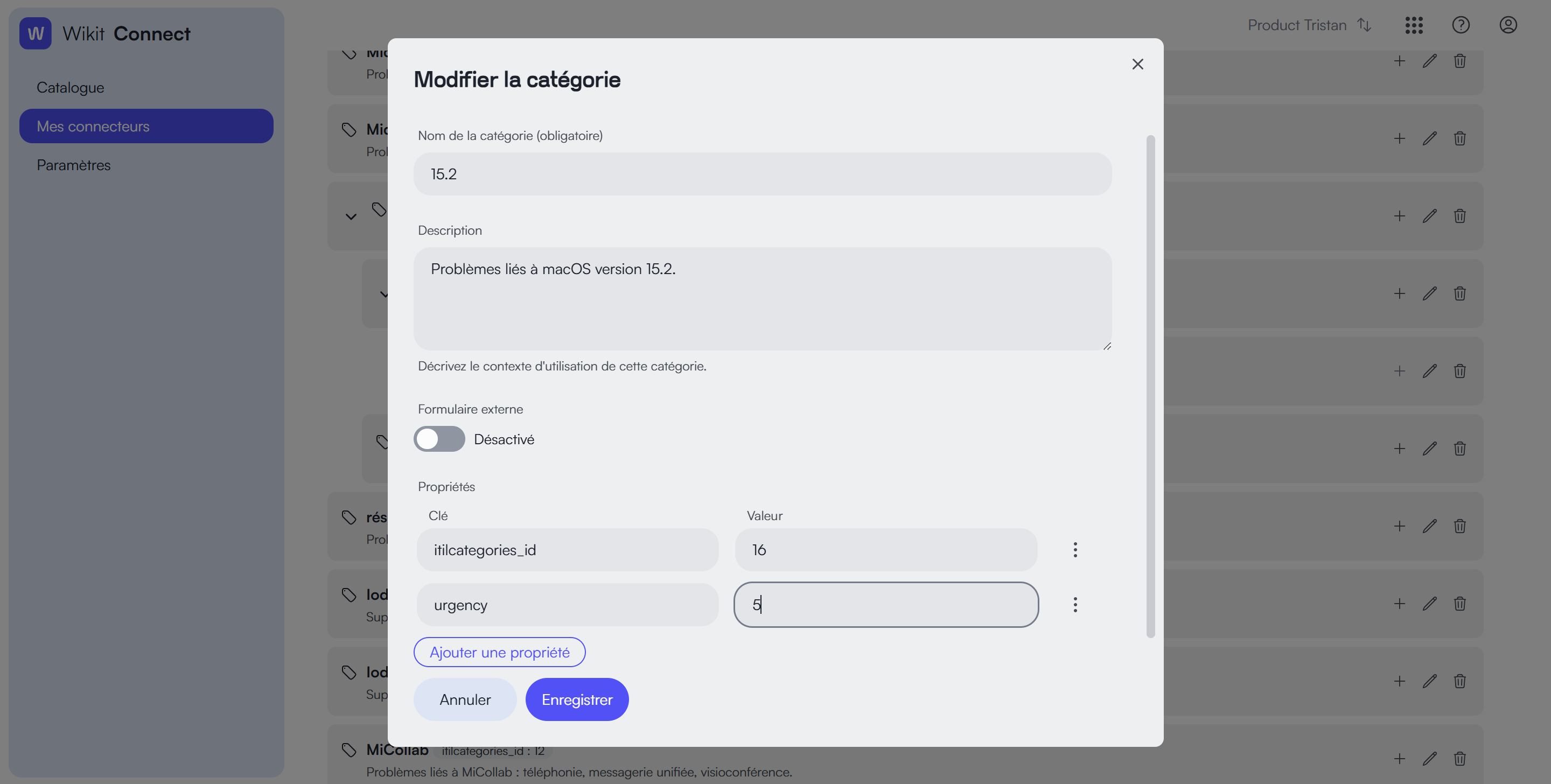
- In the Properties section of a category, add Key / Value pairs.
- Example: You can add an
urgencykey with value5for the "Critical failure" category. When creating the ticket, this field will be sent to your ITSM with this specific value.
Default Values
At the bottom of the page, the Default values section allows you to define properties that will apply to all tickets created via the Chat, regardless of the category (e.g., defining a medium urgency by default).
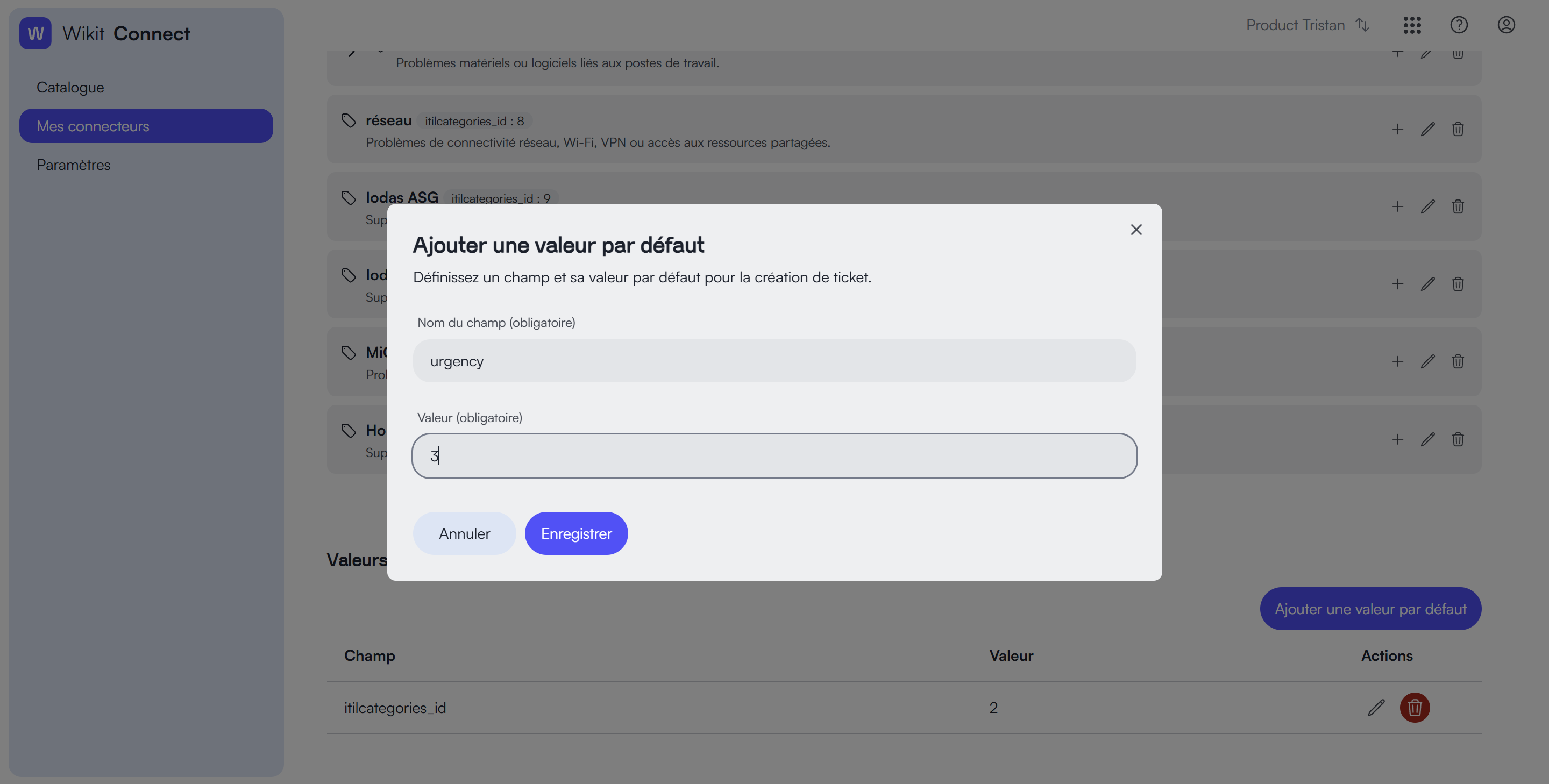
Note: Values defined at a specific category level take priority over default values.
Advanced: Using custom variables in properties
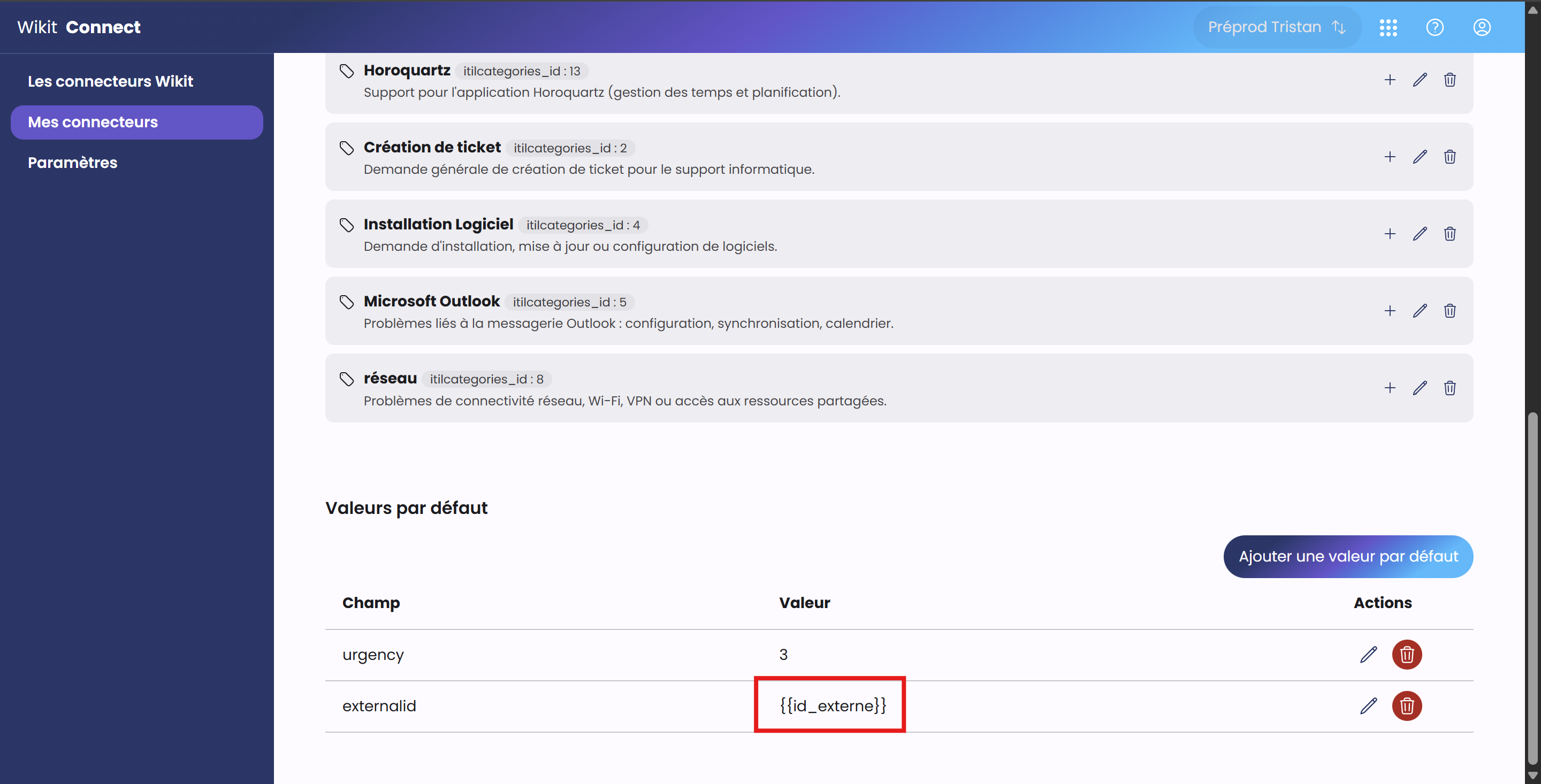
When using Semantics in Website Integration mode, you can reuse the custom variables defined in the integration within category property values or default values.
To use them, simply reference them with Mustache syntax: {{your_variable_name}} (do not copy this block).
Configuring External Forms
Some requests do not require creating a standard ticket but must go through a specific form or external procedure (e.g., New hardware request, HR procedure...).
In the category edition:
- Activate the External form option.
- Enter the Redirect URL to the target form.
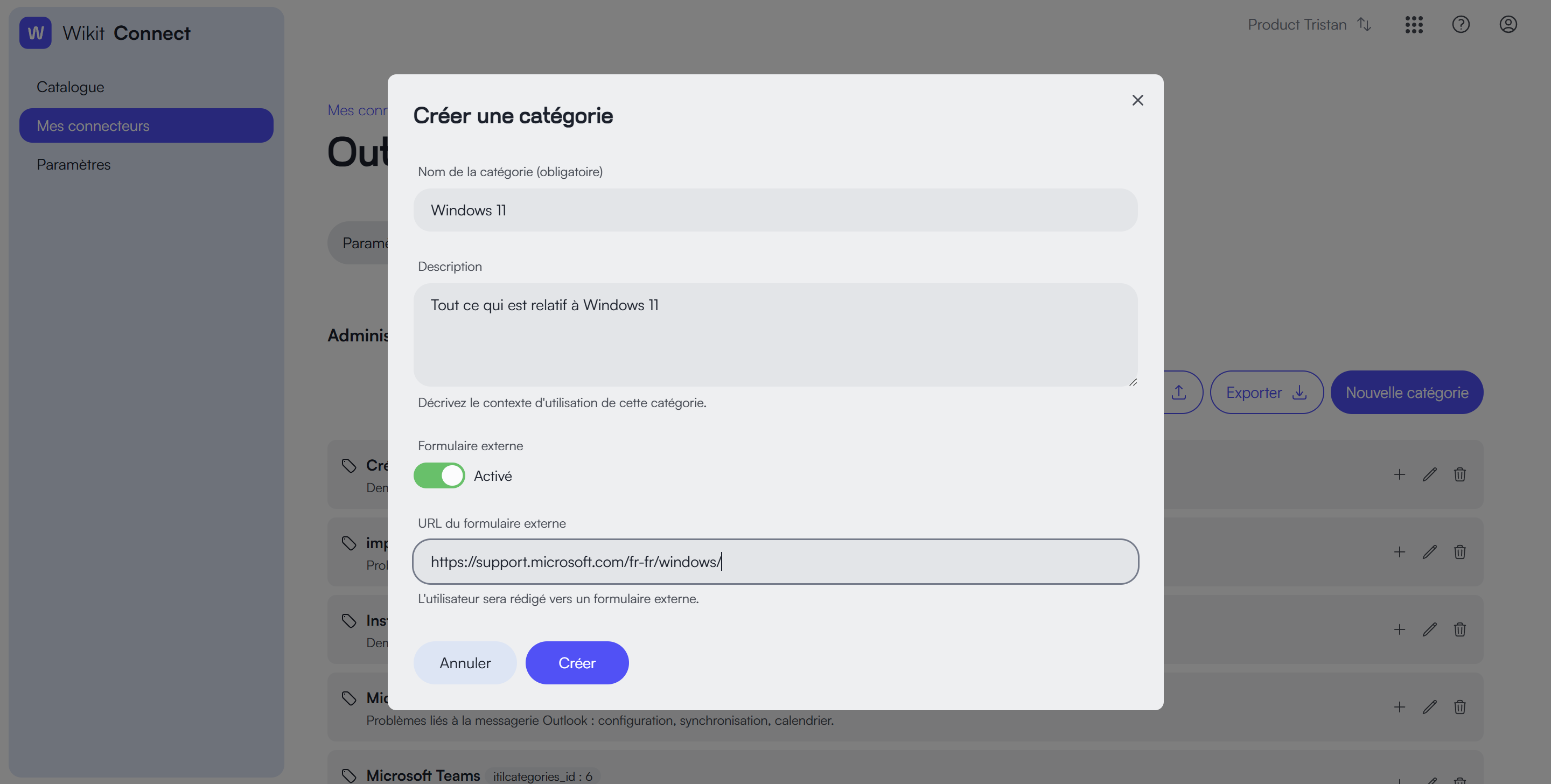
Exclusive behavior: When a user selects a category configured as "External form", the ticket creation form disappears from the Chat to be replaced by a redirect button to the configured link.
Activation in Chat (Linking the Service App)
Once the Service App is created by Wikit and your categories are configured, you must link the intelligence to the ticket creation button.
- Go to Wikit Console Semantics.
- Open your Chat App (e.g., "Technical Support").
- Go to the Semantics Chat tab.
- Scroll down to the Commands section.
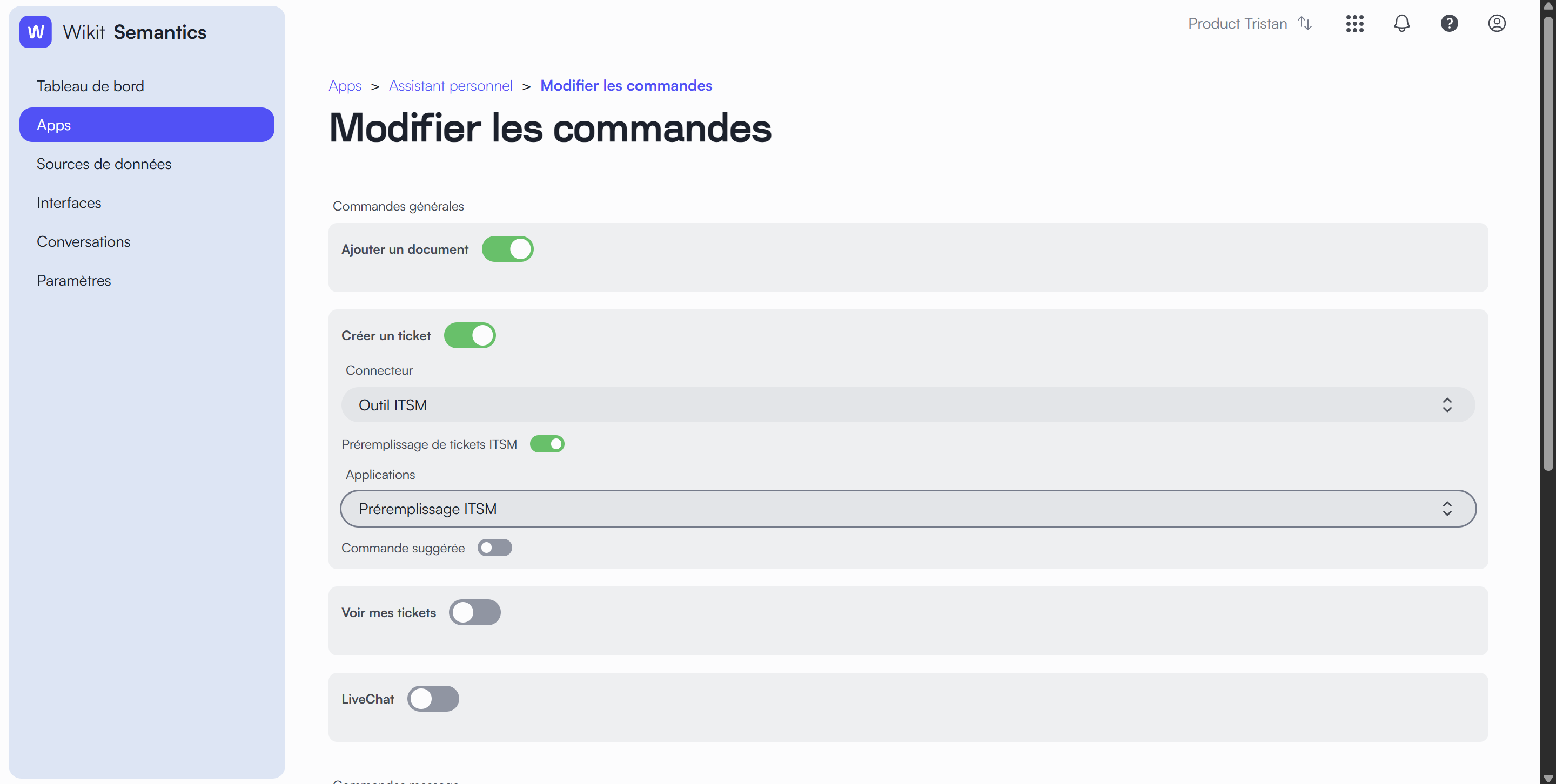
- Open the settings for the Create a ticket command.
- Toggle on ITSM Ticket Prefilling.
- In the Applications field, select the Service App created for you (e.g., "ITSM Prefilling").
- Save.
User Experience
Once configured, here is how the feature appears for your users:
- The user chats with the assistant to explain their problem.
- They click the Create a ticket button (or the assistant proposes it).
- A window opens with fields pre-filled by AI:
- Suggested category: The user can validate it, change it, or choose "Do not categorize".
- Title and Description: Automatically generated from the conversation history.
- The user can modify this information if necessary before validating.
- The ticket is created in your ITSM tool with all associated technical properties.