
Getting Started
Semantics Chat is the user interface of Wikit Semantics that allows end-users to interact with the organization's conversational assistants. Here is a guide to get started with Semantics Chat.
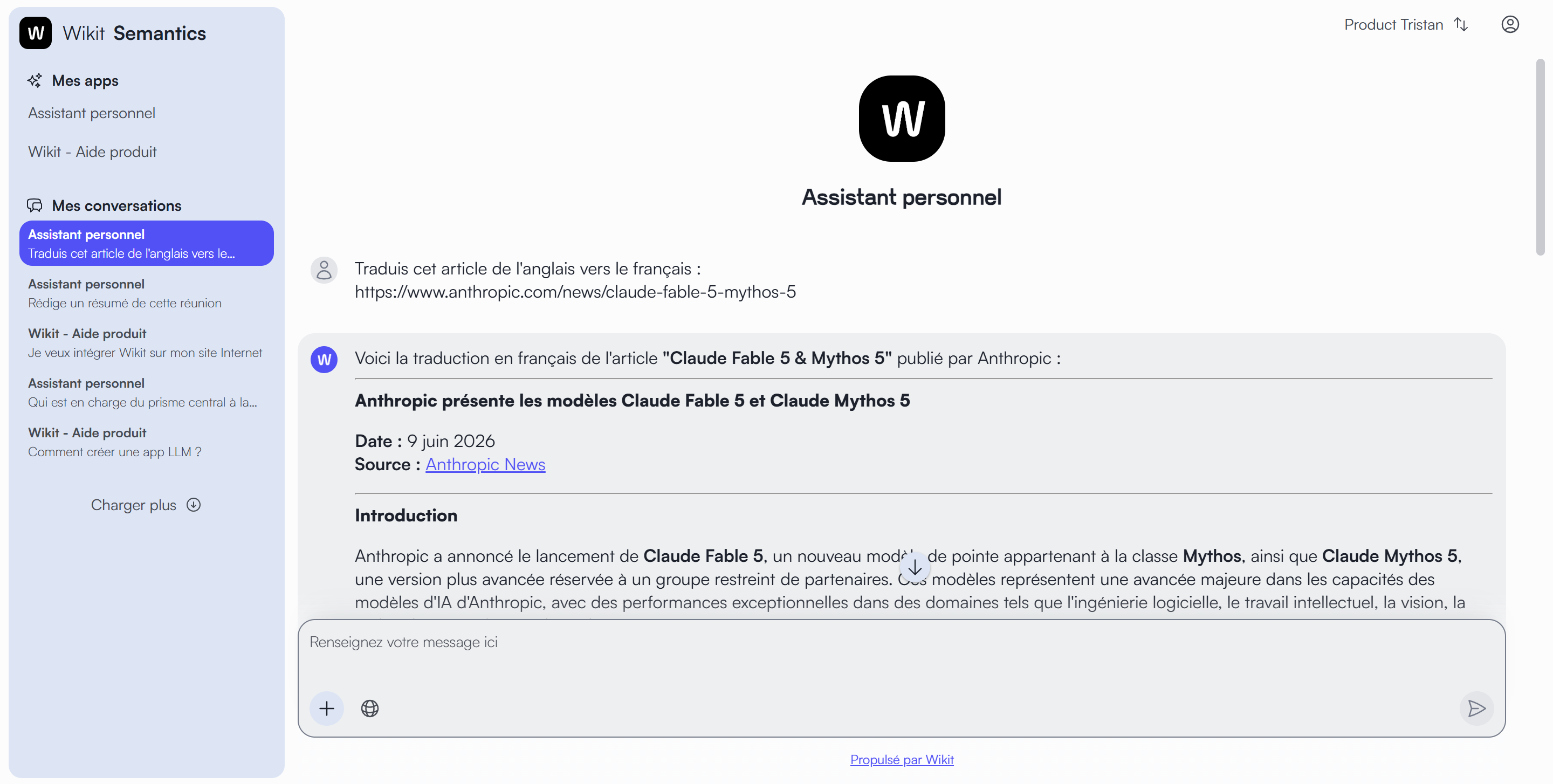
Main Interface
The Semantics Chat interface consists of four main areas, optimized for smooth navigation:
- Left Sidebar: Displays the list of conversational assistants available within your organization, as well as conversation histories.
- Central Area: Main conversation space where interactions with the selected assistant take place.
- Right Sidebar : Temporarily displays command interfaces, for example, to offer a contact form or to show the list of tickets for the logged-in user.
- Bottom Area: Input bar for submitting your questions and interacting with the assistant.
Starting a Conversation
- Select an assistant from the list located in the left sidebar (e.g., "Bellerive Site Assistant", "Personal Assistant").
- Welcome Message and Introduction : The assistant automatically introduces itself upon opening, displaying its logo, title, and a welcome message detailing its capabilities to guide you (e.g., "Hello and welcome to the virtual assistant of the City of Bellerive! I am BelleBot...").
- Use the input bar at the bottom of the screen to ask your questions.
- Send your message by clicking the send button (paper airplane icon) or by pressing the Enter key.
Available Features
1. Improved Assistant Layout
The visual presentation of each assistant has been revised for better clarity. Each assistant is now identified by:
- A distinctive logo displayed at the top of the home page.
- A clear title indicating the assistant's name.
- A detailed welcome message in bullet points, describing the assistant's areas of expertise and offering interaction suggestions.
2. Conversation Starters (New)
"Starters" (conversation triggers) are now present on the assistants' home page, appearing as clickable cards.
- Role : They allow predefined queries to be triggered with a single click.
- Advantages :
- Quick Discovery : Allow for quick discovery of the application's key features.
- Action Acceleration : Avoid retyping frequent queries.
- Demonstration : Serve to illustrate the chatbot's capabilities.
- Guidance : Help new users get started with the assistant.
- Examples : For the Bellerive Site Assistant, starters like "City News" or "Town Hall Hours" are offered, instantly generating relevant responses from the chatbot.
3. Document Management in Conversation Context (Personal Assistant)
The Personal Assistant has been updated to allow document import, thereby enriching the conversation context.
- Upload a file : A new "Upload a file" button (up arrow icon) is available in the input bar.
- Context Panel : A "Show document panel" button (eye icon) allows you to view the "Conversation Context" panel on the right side of the interface. This panel displays :
- The context capacity used by the uploaded documents.
- The file name, its type (e.g., PDF), its size.
- The expiration date and time of the document within the conversation context.
- The document's status (e.g., "Created").
- Document management options : For each uploaded document, a three-dot (vertical) menu offers the following options :
- View text : Displays the text extracted from the document. Note that the displayed text has been extracted from your original document and may differ in its formatting, but the exact content is transmitted to the language model.
- Disable : Allows temporarily disabling a document so that it is not considered for the rest of the conversation, without deleting it.
- Delete : Permanently removes the document from the conversation context.
- Context persistence : Documents are retained for a specific conversation. If you start a new conversation with the same assistant, the document context is reset and will need to be recreated.
- Supported formats : You can import documents in the following formats : .json, .pdf, .md, .txt, .docx, .html, .xlsx, .csv.
- Enriched interactions : This feature allows the assistant to combine and analyze multiple sources, rephrase content, synthesize information, or extract targeted data from the documents you provide.
4. Message Actions
Each response generated by the assistant offers interactive actions :
- Give negative feedback on the message (thumbs down).
- Give positive feedback on the message (thumbs up).
- Consult sources used (if applicable) : Allows access to the documents or web pages that were used to generate the response.
5. Warning Message
A notice located at the bottom of the interface constantly reminds the user that Artificial Intelligence may generate errors. It is strongly recommended to verify critical and important information. A direct link to Wikit's General Terms of Use (GTU) is also available.
Best Practices
To optimize your interactions with assistants and get the best responses :
- Ask clear and precise questions.
- Provide the necessary context to help the assistant understand your query, especially by using the new document import feature for the Personal Assistant.
- Always verify critical information, especially that which requires absolute accuracy.
- Give feedback via the action buttons (positive/negative feedback) to contribute to the continuous improvement of the assistant.
Semantics Chat continues to evolve to offer an increasingly intuitive and powerful user experience for interacting with conversational assistants created in Wikit Semantics. Explore these new features to get the most out of your interactions.