
Apps Management
Apps Overview
The Apps page is your central space for managing your applications. This page allows you to easily view and manage all your applications created with the Wikit Semantics tool.
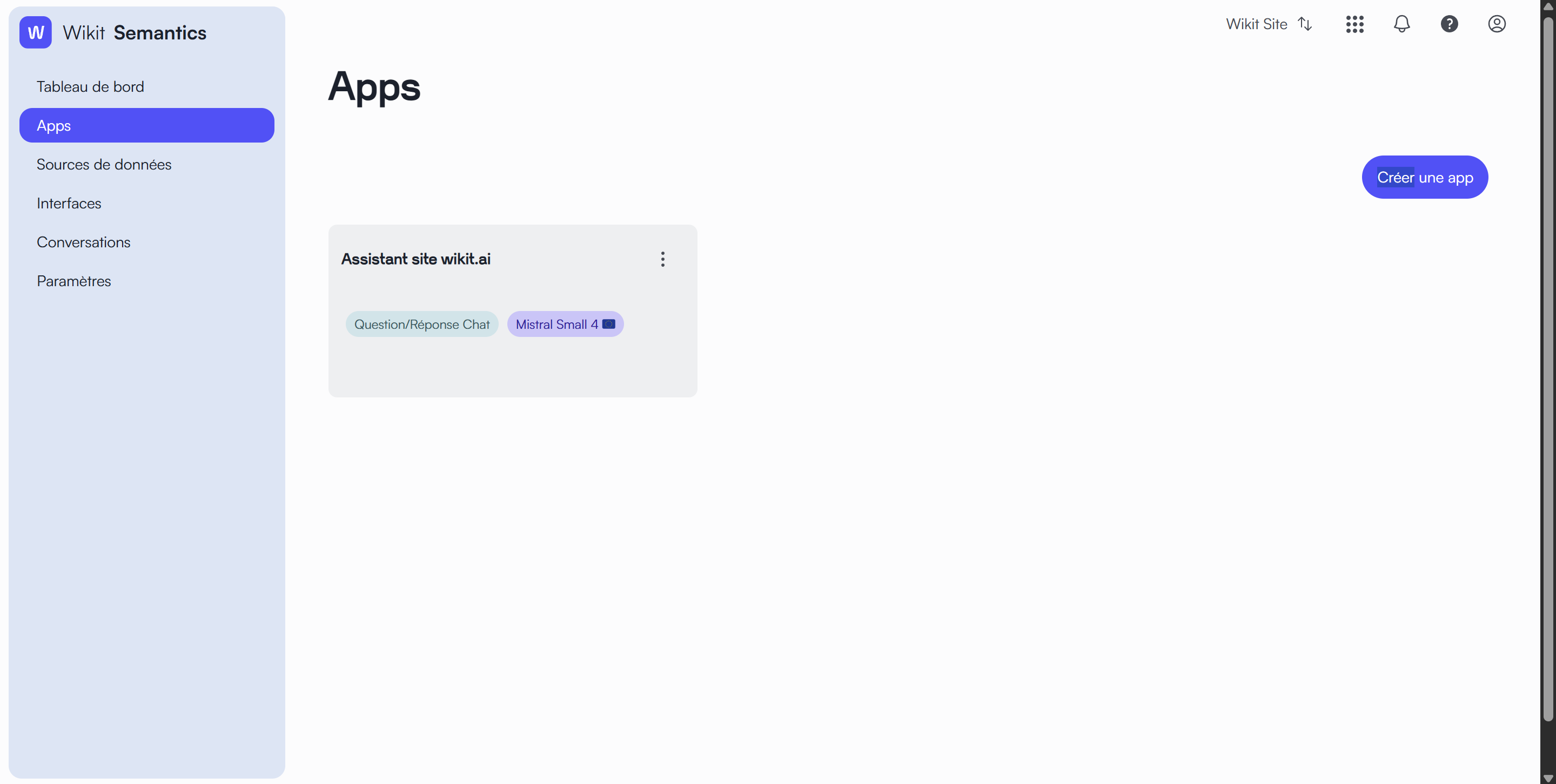
Your applications are displayed as cards. For each application, you can see:
- The application name
- The application type (e.g., Question/Answer Chat)
- The artificial intelligence model used (e.g., Azure GPT-4o Mini)
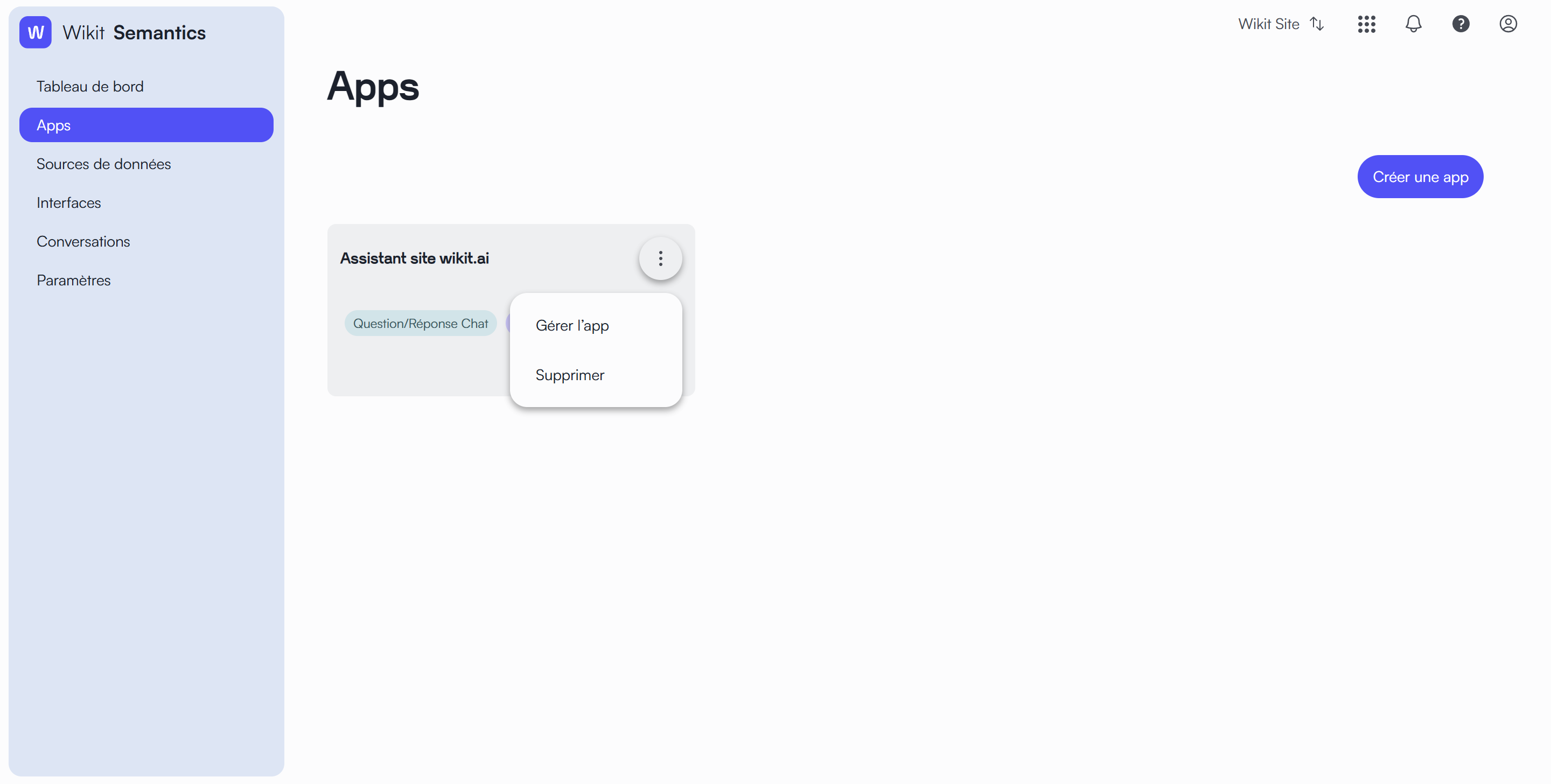
On each application card, you will find a three-dot menu (⋮) that gives you access to several options:
- Manage App : To modify your application's settings
- Delete : To remove the application from your space
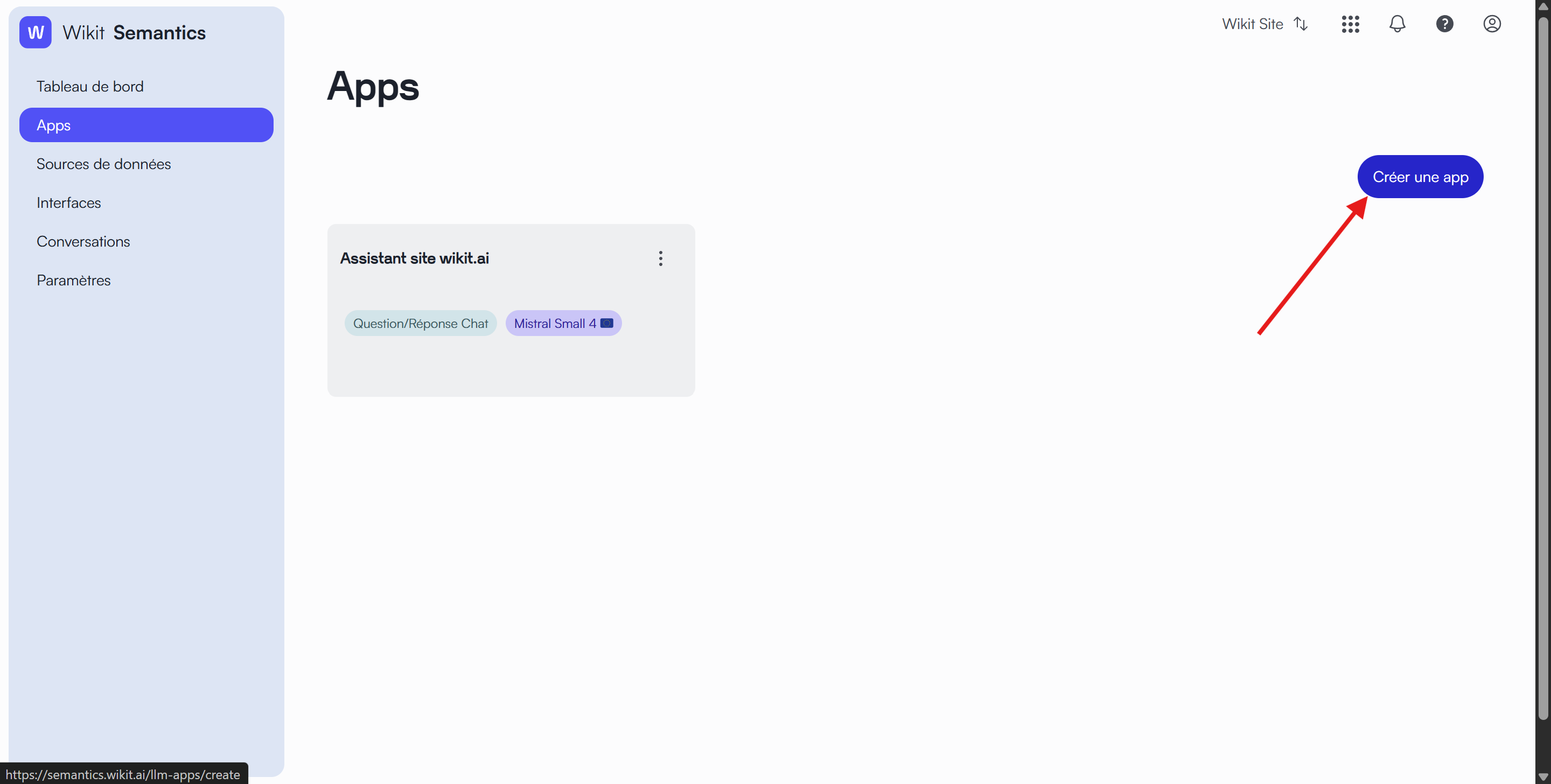
At the top right of the page, you will find a blue "Create App" button that allows you to start creating a new application.
Creation and Modification
Create a new application
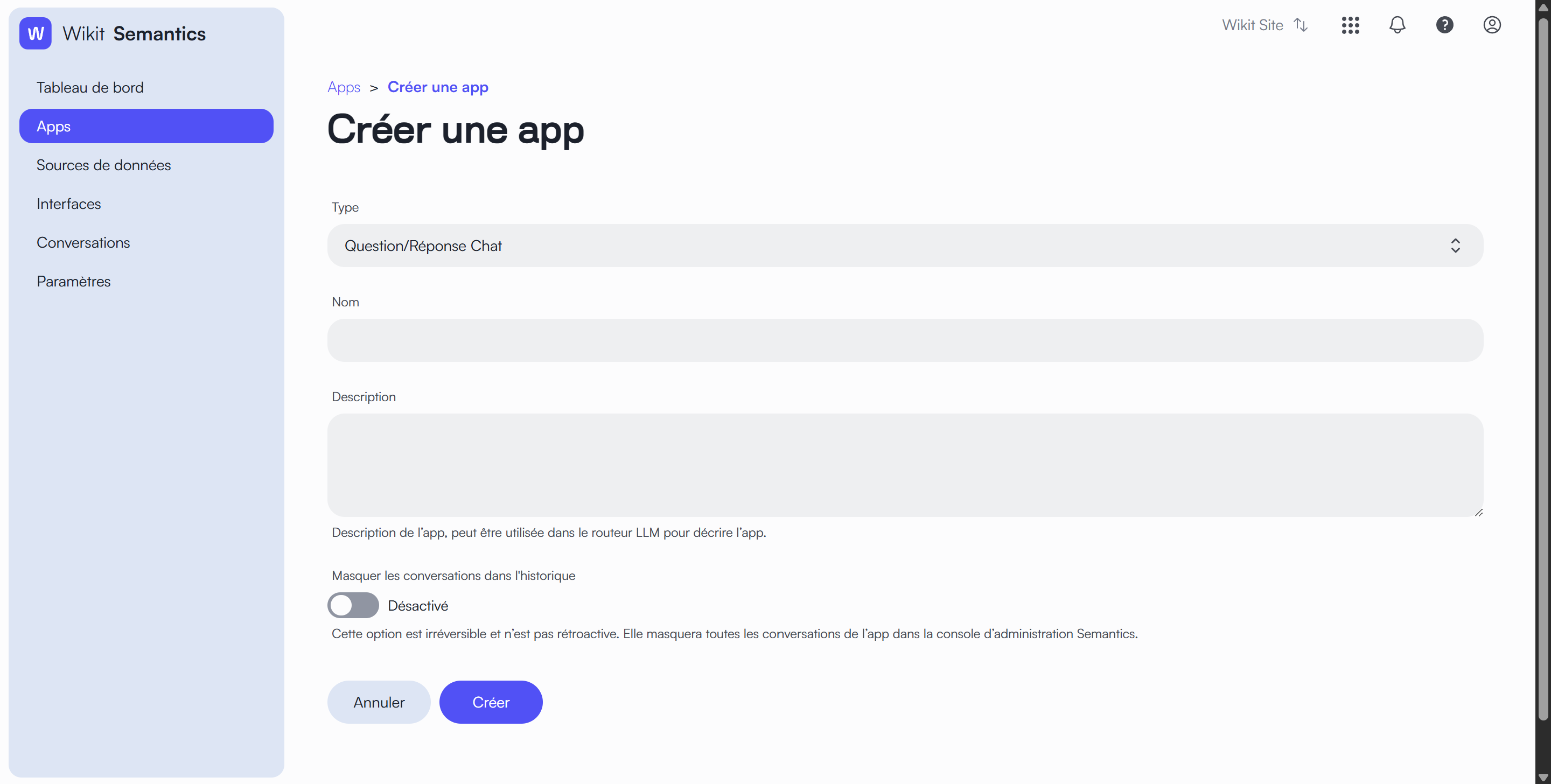
When you click on the "Create App" button, a form opens with three main fields:
- Application Type
- Select the application type from the dropdown list
- Each type corresponds to a specific use (see the "Application Types" section for more details)
- Name
- Give your application a name
- Choose a name that will allow you to easily identify its use
- Description (optional)
- Add a description to specify the use of your application
- This field is particularly useful for meta-applications
By clicking on "Create", your application will be created with pre-configured settings:
- A prompt adapted to the chosen application type
- The Azure GPT-4o Mini connector
- Activated guardrails (security mechanisms)
These settings can be modified later if necessary.
The settings page is organized into several tabs:
- Settings
- Semantics Chat
- Advanced Settings
- Data Sources
- Evaluation (Beta)
Modify an application
Following the creation of an application or by clicking on the "Manage an application" option of an existing app, you will be able to access your application's settings to customize it.
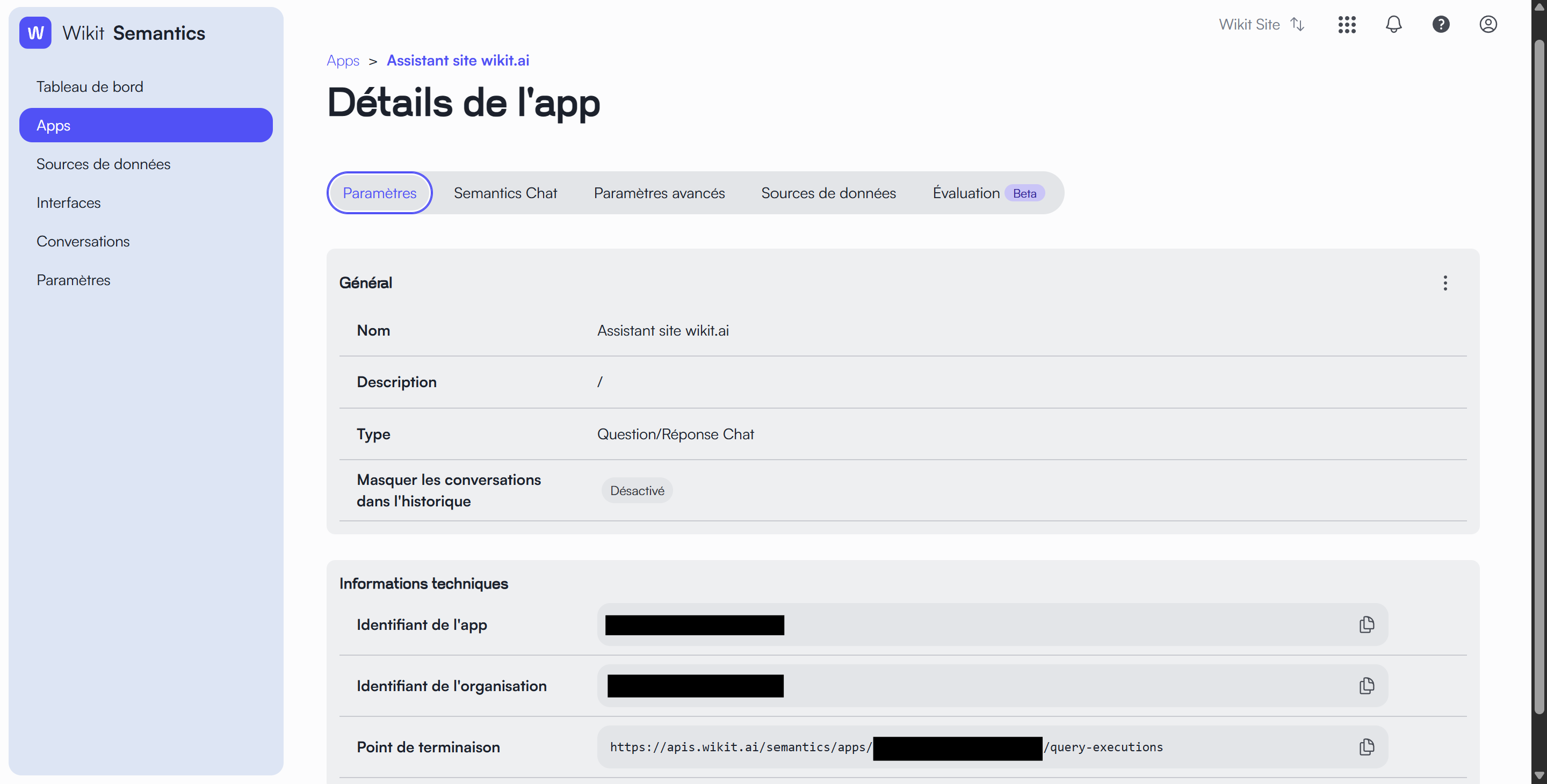
The "Settings" tab
This tab contains the essential information for your application, divided into two sections:
"General" Section
This section allows you to view and modify:
- Name : The name of your application
- Description : A brief description of your application's use
- Type : The chosen application type (e.g., Question/Answer Chat)
"Technical Information" Section
This section displays important information for integration:
- App ID : Unique code for your application
- Organization ID : Unique code for your organization
- Endpoint : The access URL for your application
Note : Technical information can be copied by clicking on the copy icon to the right of each field.
The "Semantics Chat" tab
This tab allows you to customize your chatbot's user interface and configure its commands. It is divided into two main sections:
"General" Section
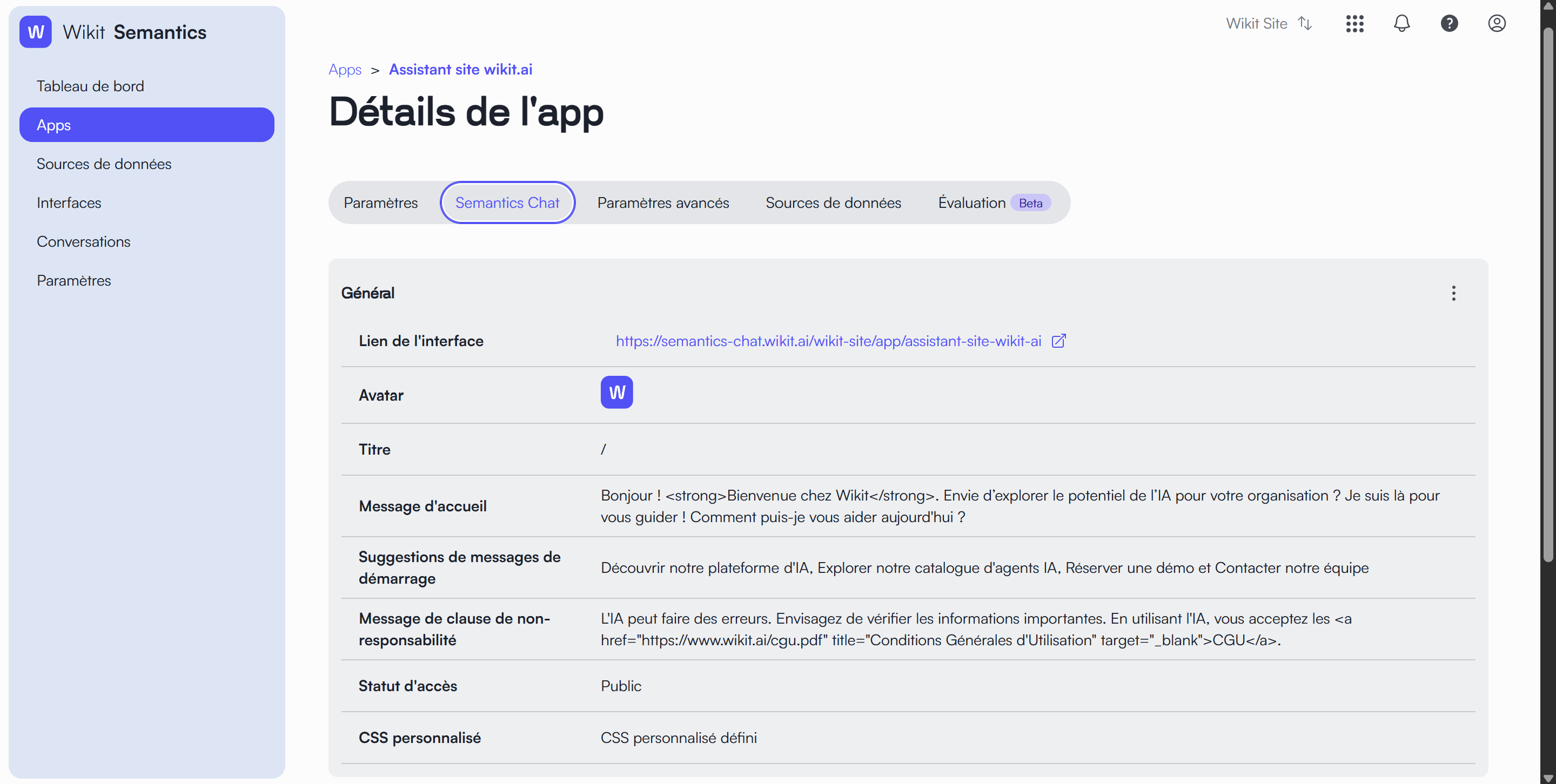
This section allows you to customize your chatbot's appearance and messages:
- Interface Link : The direct URL to access your chatbot
- Avatar : The image that represents your chatbot (leave blank to use the default avatar)
- Title : The name displayed at the top of the chat interface
- Welcome Message : The message that is automatically displayed when a user opens the chat
- Disclaimer Message : A warning message or legal information to display to users
"Commands" Section
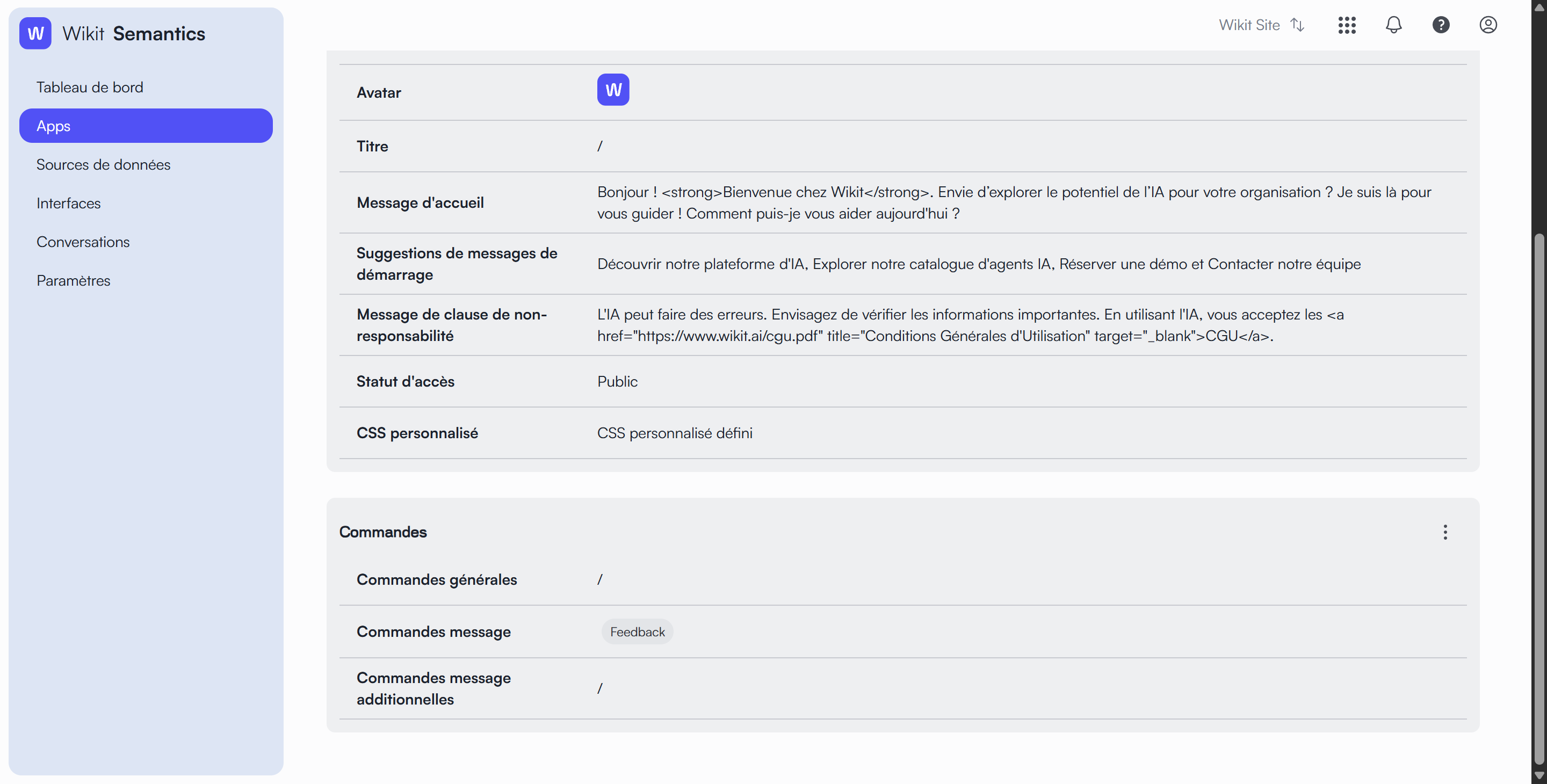
This section allows you to configure the commands available in your chat:
- General Commands : The basic commands available to all users
- Message Commands : Specific commands related to messages (currently "Show Sources" and "Feedback")
- Additional Message Commands : Additional commands you can add
Note : To add or modify commands, click on the corresponding field and enter the new command. Already configured commands will appear as badges that you can delete by clicking on the cross.
The "Data Sources" tab
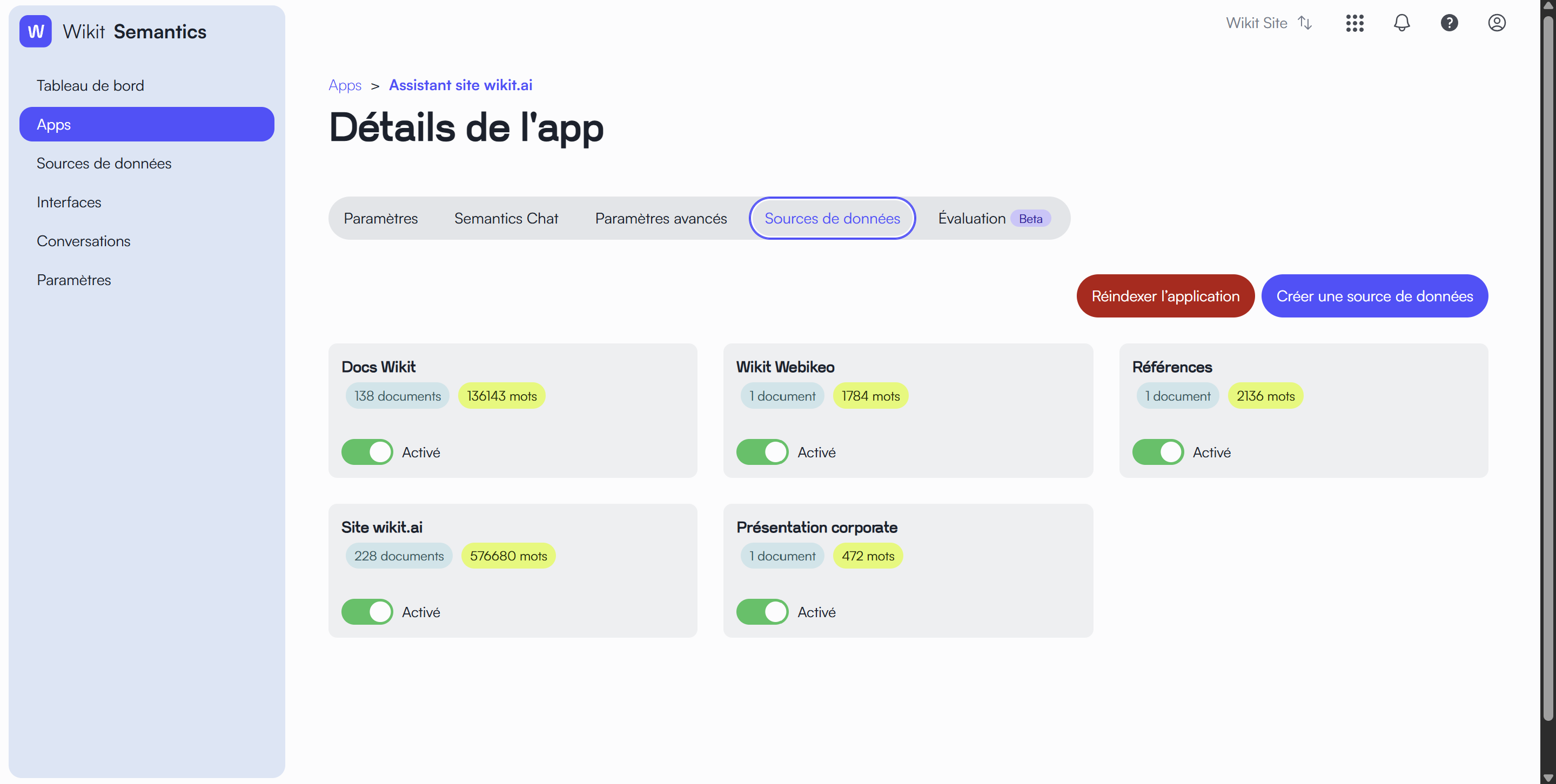
This tab allows you to manage the knowledge sources that your application can use to answer questions.
Create a new source
- Click on the "Create data source" button at the top right of the screen
- Follow the instructions to add your documents
Manage your data sources
Each data source is presented as a card that displays:
- The name of the source
- The number of documents it contains
- The total number of words
- A switch to enable or disable the source
The "Evaluation" tab
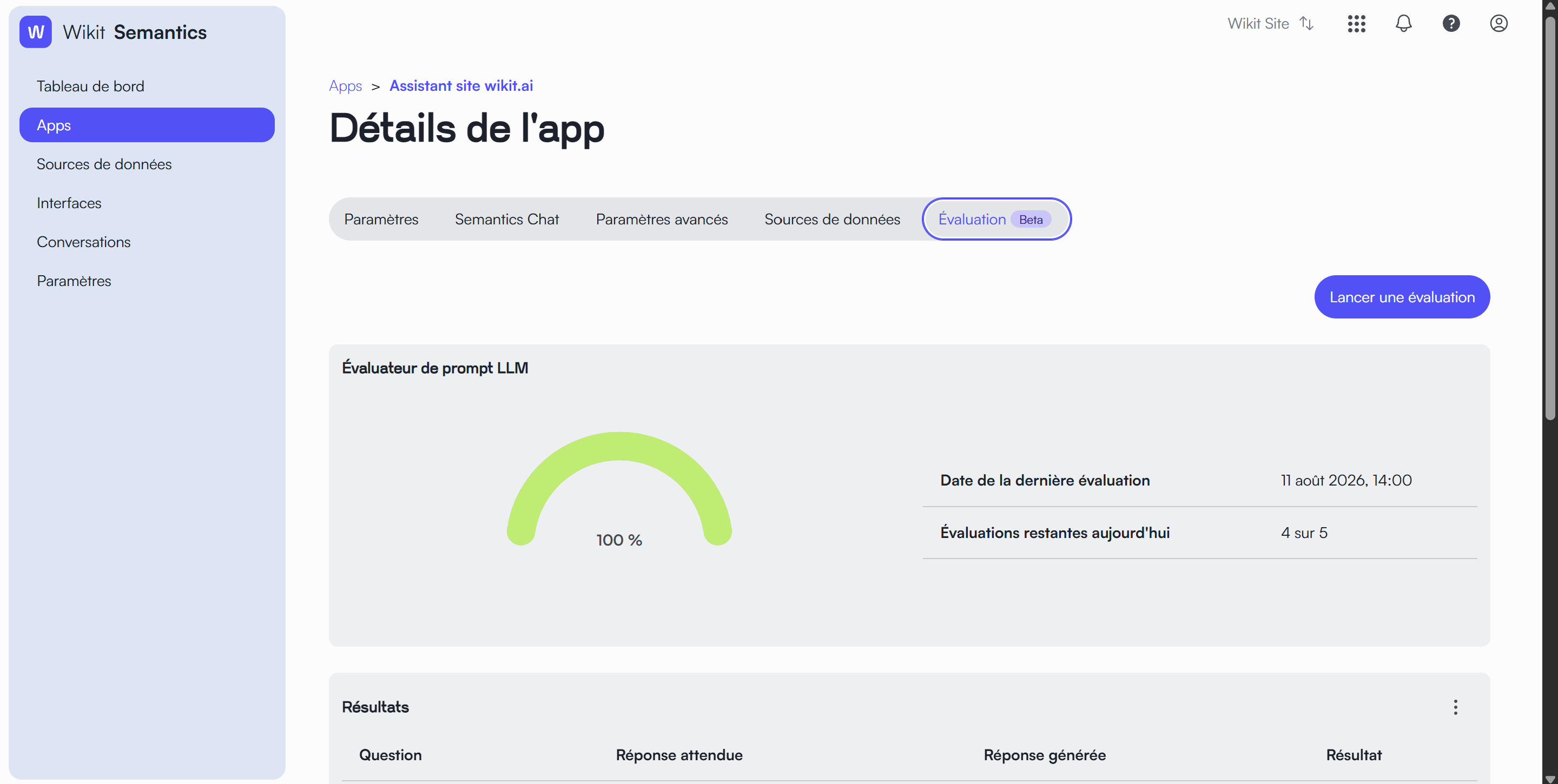
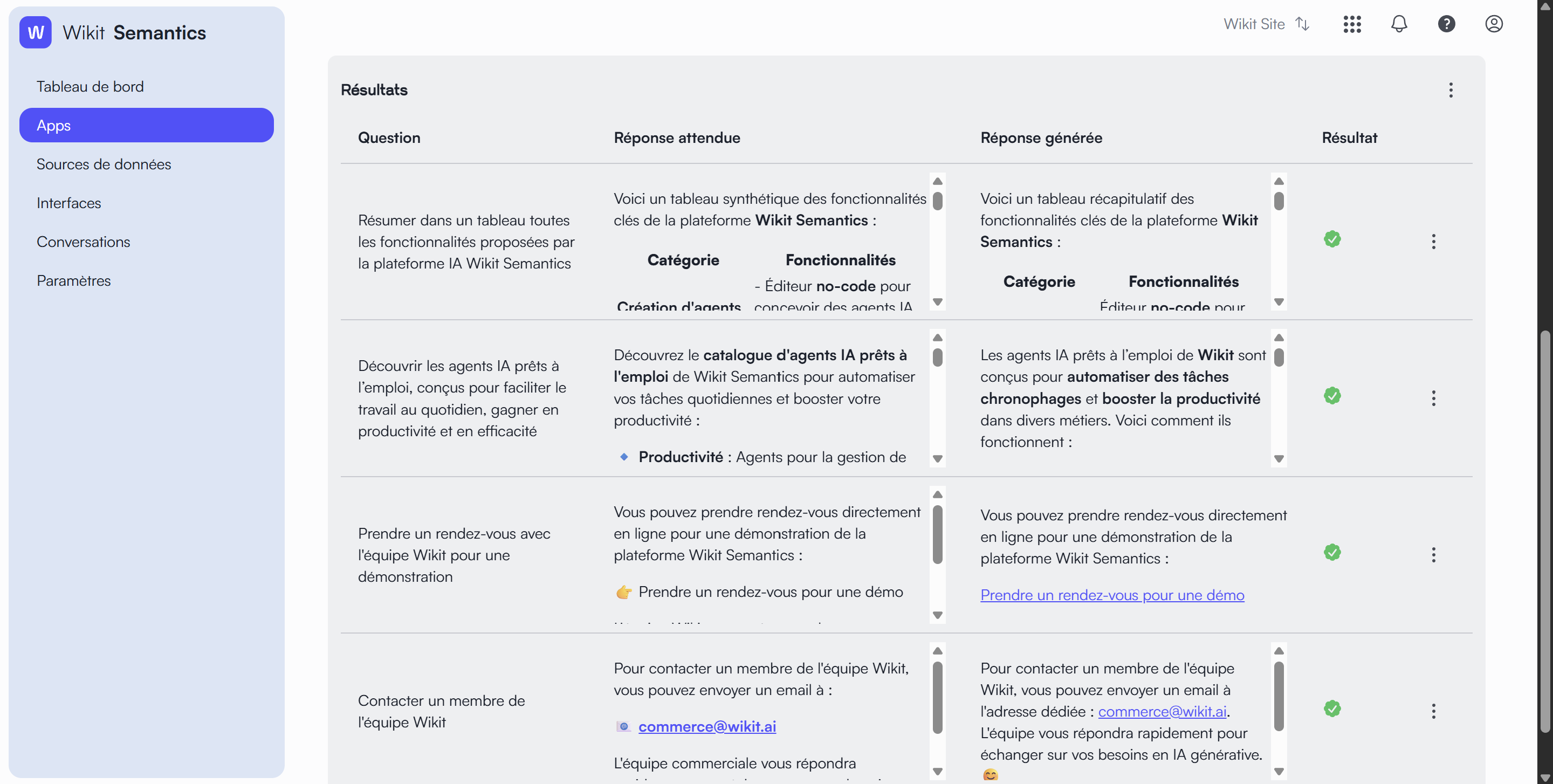
This tab allows you to test and evaluate the quality of your application's responses. For more information, please refer to the evaluate my App page.
Manage Access to an Application in Semantics Chat
You can also restrict access to a specific application. Access is controlled by a list of authorized email addresses, ensuring that only specified users can interact with the application.
- Click on the Semantics Chat tab (located among the configuration options).
- In the General section, click on the three vertical dots (
⋮) then on Edit. - Scroll down the general configuration modification page to the Authorized Emails section.
- This section controls chat access for users with specific emails.
- Click on the Select emails field.
- Select or manually add the email addresses of the specific users to whom you wish to grant access.
- Once the emails are added, click the blue Save button at the bottom of the page.
Result
The application is updated. From now on, access to this application via Semantics Chat will be restricted: only users logged in with an email address appearing in the Authorized Emails list will be able to access and interact with it.