Integration into Teams
Prerequisites
Before starting the creation of your Teams integration, ensure you have the following elements:
Required Rights and Access
- Administrator rights on the tenant: You must have sufficient permissions on your Microsoft 365 tenant to be able to validate and publish a custom application
- Developer Portal Access: You must have access to the Teams development portal (https://dev.teams.microsoft.com)
- Teams Admin Center Access: Required for the final publication of the application in your organization
Information to Prepare
- Name of your application
- Description of the application
- URL of your web application
- Logo of your application (recommended format: PNG, specific dimensions according to Microsoft guidelines)
- URLs for Wikit's privacy policy and terms of use
- Wikit website URL https://wikit.ai
- privacy policy https://www.wikit.ai/politique-de-confidentialite/
- TOU https://www.wikit.ai/wp-content/uploads/CGU-Wikit.pdf
Step 1: Access the Developer Portal
Go to the Microsoft Teams Developer Portal.

The Developer Portal allows you to manage the applications and agents you create for Teams.
Step 2: Create a New Application
Click on "Create a new app" to start creating your Teams application.

A dialog box will open asking you for:
- Name: The name of your application
- Manifest version: Select the manifest version (generally the latest stable version)
Click on "Create" to continue.
Step 3: Configure Basic Information
Go to the "Basic Information" section in the left menu.

Mandatory Fields to Fill In
In this section, you must complete the following information:
- Short name: Short name of your application
- App ID: Unique identifier automatically generated
- Description: Short description and long description of your application
- Version: Version number of your application
- Developer information: Developer information (name, website)
- App URLs:
- Privacy policy
- Terms of use
Click on "Save" once all fields are filled.
Step 4: Add Your Logo
You can customize the appearance of your application by adding a logo.

Go to the "Branding" section in the left menu and upload:
- Color icon: Color icon (192x192 pixels)
- Outline icon: Outline icon (32x32 pixels)
- Accent color: Accent color of your application
Step 5: Configure Application Features
Go to the "App features" section.

This section allows you to select the features you want to add to your application:
- Personal app: Personal application for individual users
- Bot: Addition of a conversational bot
- Message extension: Messaging extension
- Meeting extension: Meeting extension
- Group and channel app: Application for groups and channels
- Activity feed notification: Notifications in the activity feed
For this guide, we will create a Personal app.
Step 6: Create a Personal Application (Personal app)
Click on "Personal app" in the list of available features.

Then click on "Create your first personal app tab".
Personal Tab Configuration

Fill in the following information:
- Tab name: Name of your tab (example: "Semantics Chat")
- Entity ID: Unique identifier for this tab
- Content URL: URL of your interface that will be displayed in Teams here, you will need to enter the link of your Wikit Semantics interface and add
?teams=trueto it - Website URL: same as the Content URL field
- Scopes: Select "personal" for a personal application
Click on "Confirm" to validate.
Step 7: Enable Full-Screen Mode (Optional)
In the "App content" section, you can enable full-screen mode.

Click on "Save" to save your changes.
Step 8: Authorize the Domain (Optional)
In the "Domains" section, you need to add Wikit's authentication domain to the list.

Click on "Save" to save your changes.
Step 9: Publish the Application to Your Organization
Once all configurations are complete, go to the "Publish to org" section in the left menu.

This page displays the status of your publication request:
- Version: The current version of your application
- Status: The publication status (awaiting approval, approved, etc.)
Click the button to submit your application for publication.
Step 10: Approve the Application in the Teams Admin Center
After submitting your application, you must approve it in the Teams Admin Center.

Approval Procedure
- Go to the Microsoft Teams Admin Center
- In the left menu, click on "Teams apps"
- Select "Manage apps"
- Search for your application in the list (it should appear with the status "Blocked" or "Pending approval")
- Click on your application to open the details

- Click on the "Publish" button in the confirmation dialog box
- Confirm the publication by clicking "Publish" again
Step 11: Verification and Propagation Delay
Once the application is published, it should appear in your Microsoft Teams client.
Important Note: The propagation time can be a bit long (from a few minutes to several hours in some cases). If your application does not appear immediately, wait a few moments and refresh your Teams client.
Where to Find Your Application
Users can find the application by:
- Clicking on the "Apps" menu in the left sidebar of Teams
- Searching for the name of your application
- Adding it to their personal workspace
- You can also force the installation for your users
Troubleshooting
The application does not appear in Teams
- Verify that the application has been published in the Teams Admin Center
- Wait a few minutes for propagation
- Refresh your Teams client (Ctrl+R on Windows/Linux, Cmd+R on Mac)
- Log out and log back into Teams
Error during publication
- Verify that all mandatory fields are filled in the "Basic Information" section
- Ensure that the provided URLs are valid and accessible
- Verify that you have the necessary administrator rights
The application does not load
- Verify that the content URL (Content URL) is correct and accessible
- Ensure that your web server is responding correctly
- Check the security settings and CORS headers of your application
FAQ
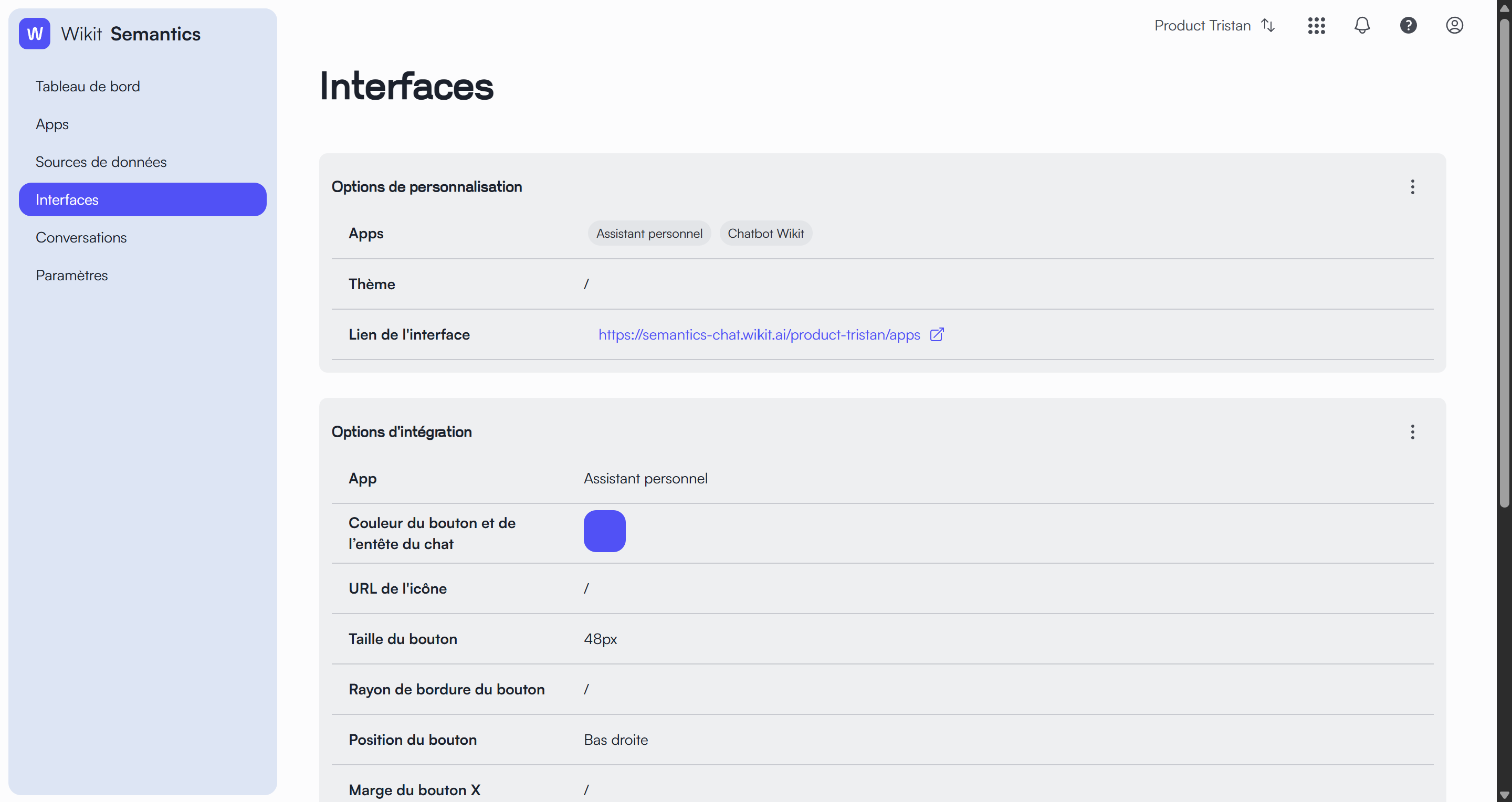
How to find the URL of the Semantics Chat interface?
By going to the Interface page on the Semantics console, you will find the interface link; if your interface is not yet configured, you can do so on the same page!