
Integration on a Website
Introduction
This documentation guides you through the process of integrating your Semantics Chat chatbot onto your website. This feature allows your visitors to interact with your application directly from your site, thus offering an improved user experience and easy access to your content and services.
Prerequisites
Before starting the integration, make sure you have the following:
- A configured and functional application
- Access to the Wikit Semantics administration console
- Editing rights on the website where you wish to integrate the chatbot
Integration Steps
1. Access the Integration Interface
Go to the "Interface" tab in the "Wikit Semantics" console.
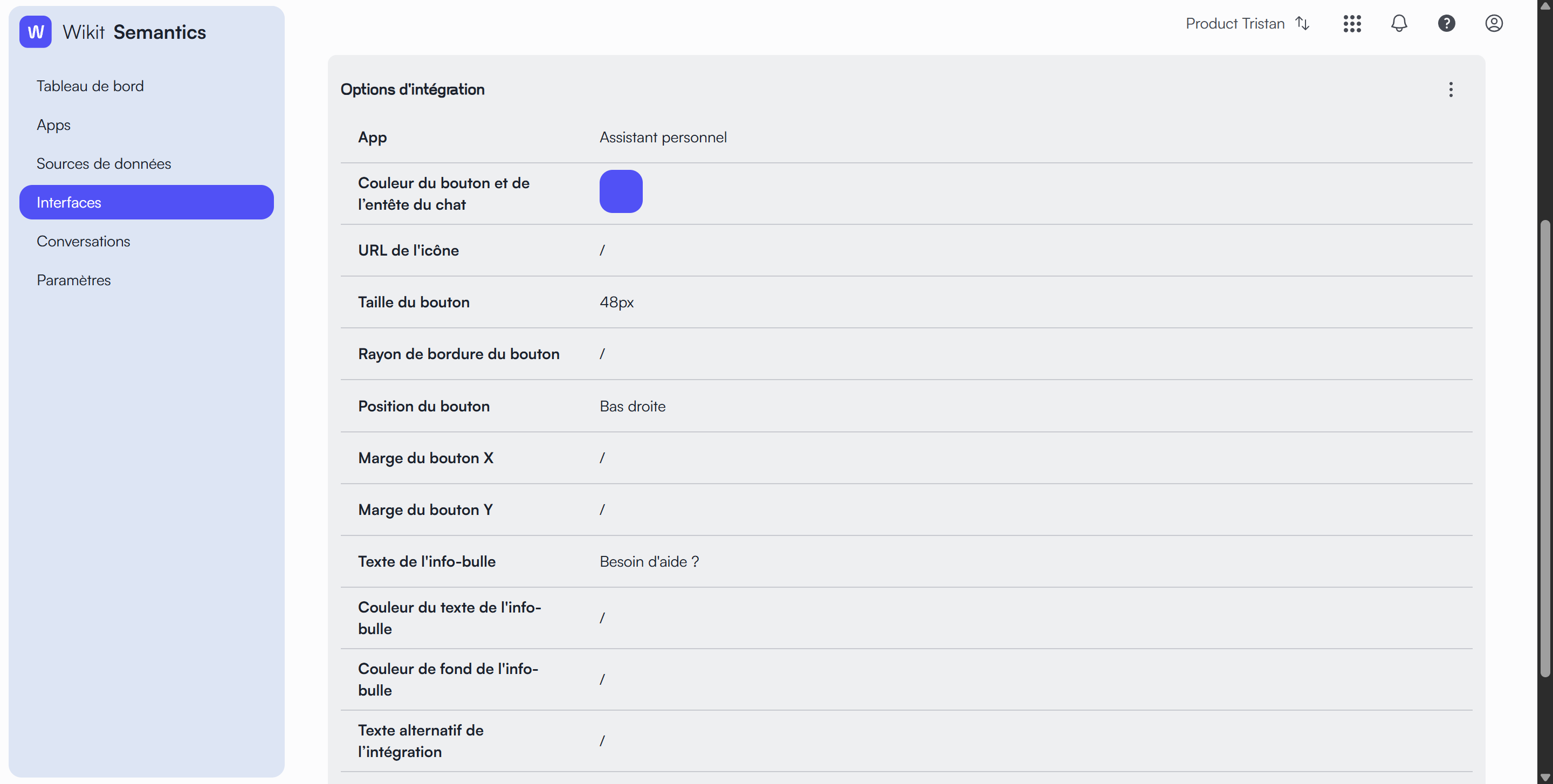
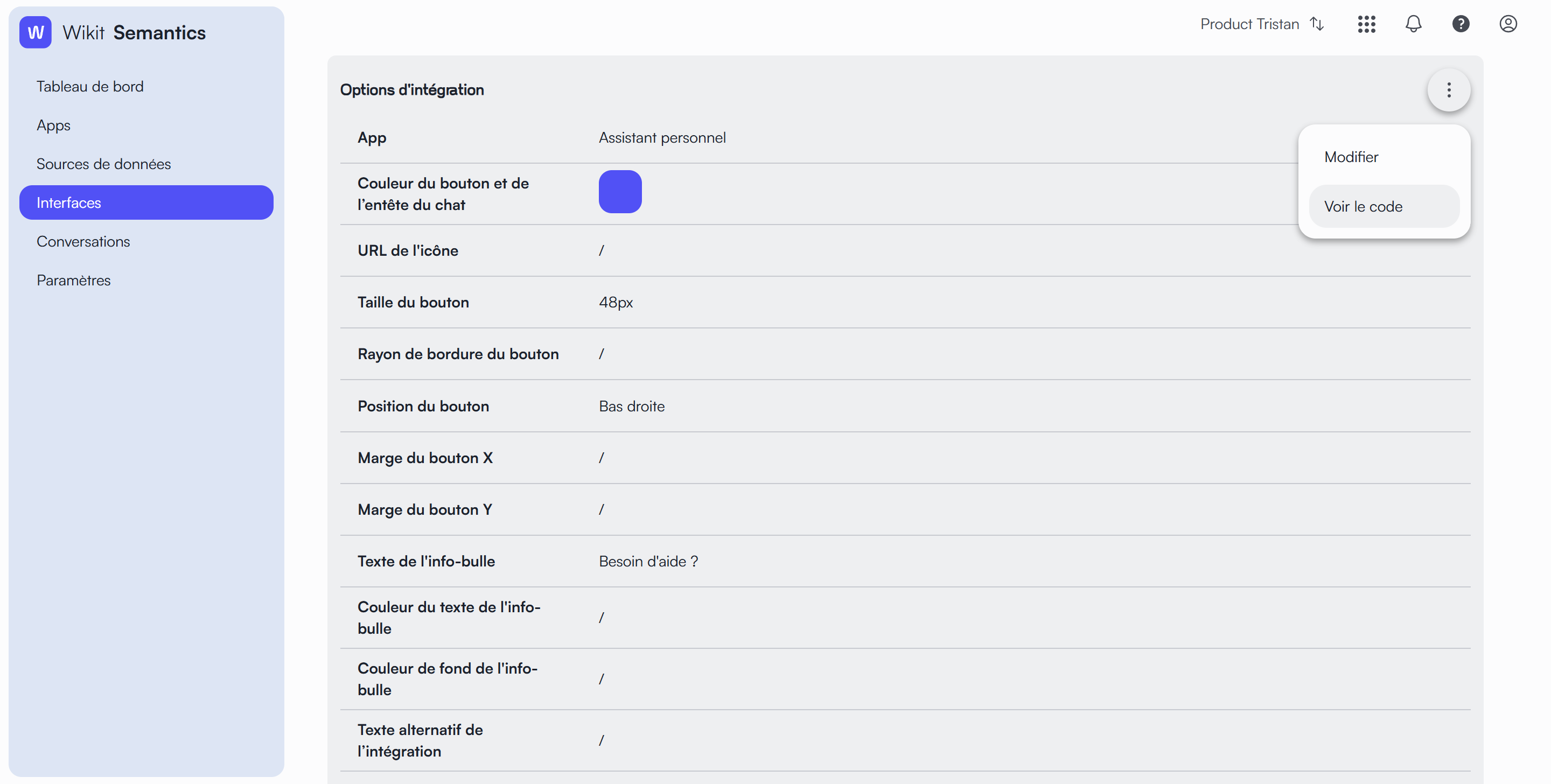
2. Obtain the Integration Code
In the "Integration Options" section, click on the kebab menu (⋮) then select "View code".
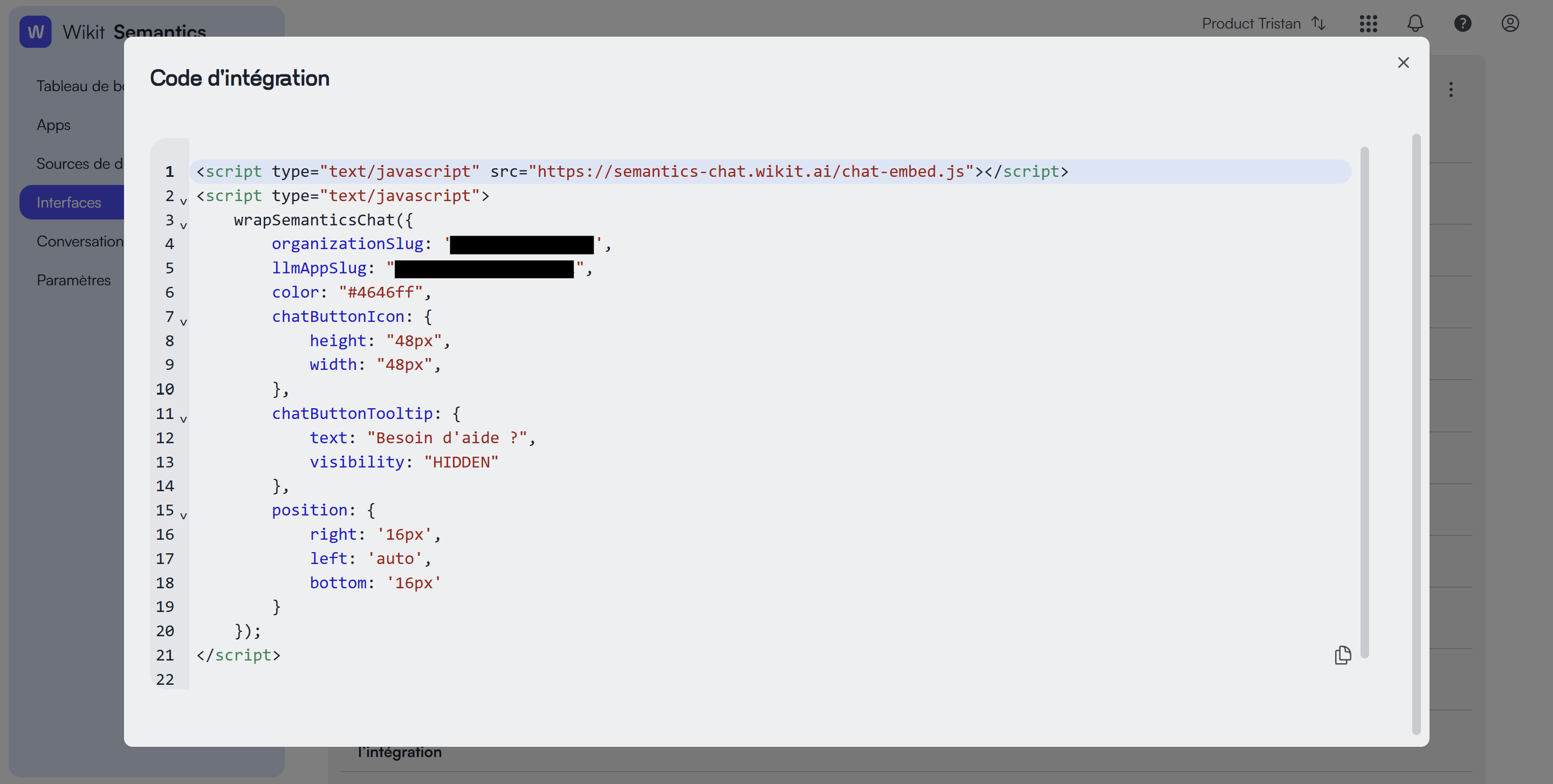
3. Copy the Integration Code
The Semantics Chat integration code is displayed in a modal window. Copy the code using the button at the bottom right.
4. Integrate the Code into Your Site
Add the copied code to the <body> section of your HTML page. If you are using a Content Management System (CMS), insert it into the appropriate section according to your platform.
<body>

	<script type="text/javascript" src="https://semantics-chat.wikit.ai/script.js"></script>
	<script type="text/javascript">
	  wrapSemanticsChat({
	    customDomain: 'your-domain',
	    organizationSlug: 'your-organization',
	    llmAppSlug: 'your-app-slug',
	    color: '#000000',
	    chatButtonIcon: {
	      height: '48px',
	      width: '48px'
	    },
	    chatButtonTooltip: {
	      text: 'Hello'
	    },
	    position: {
	      right: '1rem',
	      left: 'auto',
	      bottom: '1rem'
	    }
	  });
	</script>

<body>
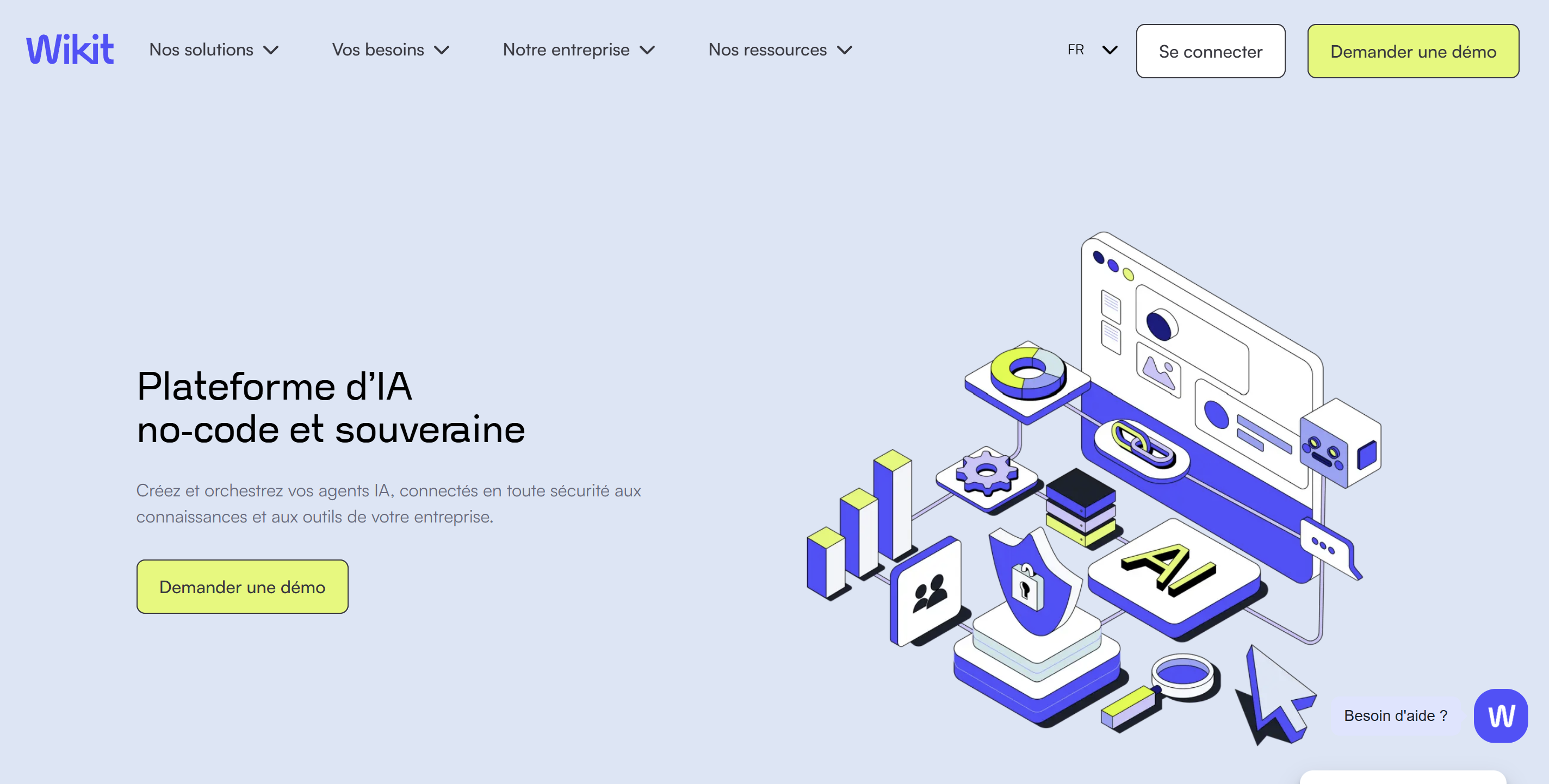
5. Verify the Integration
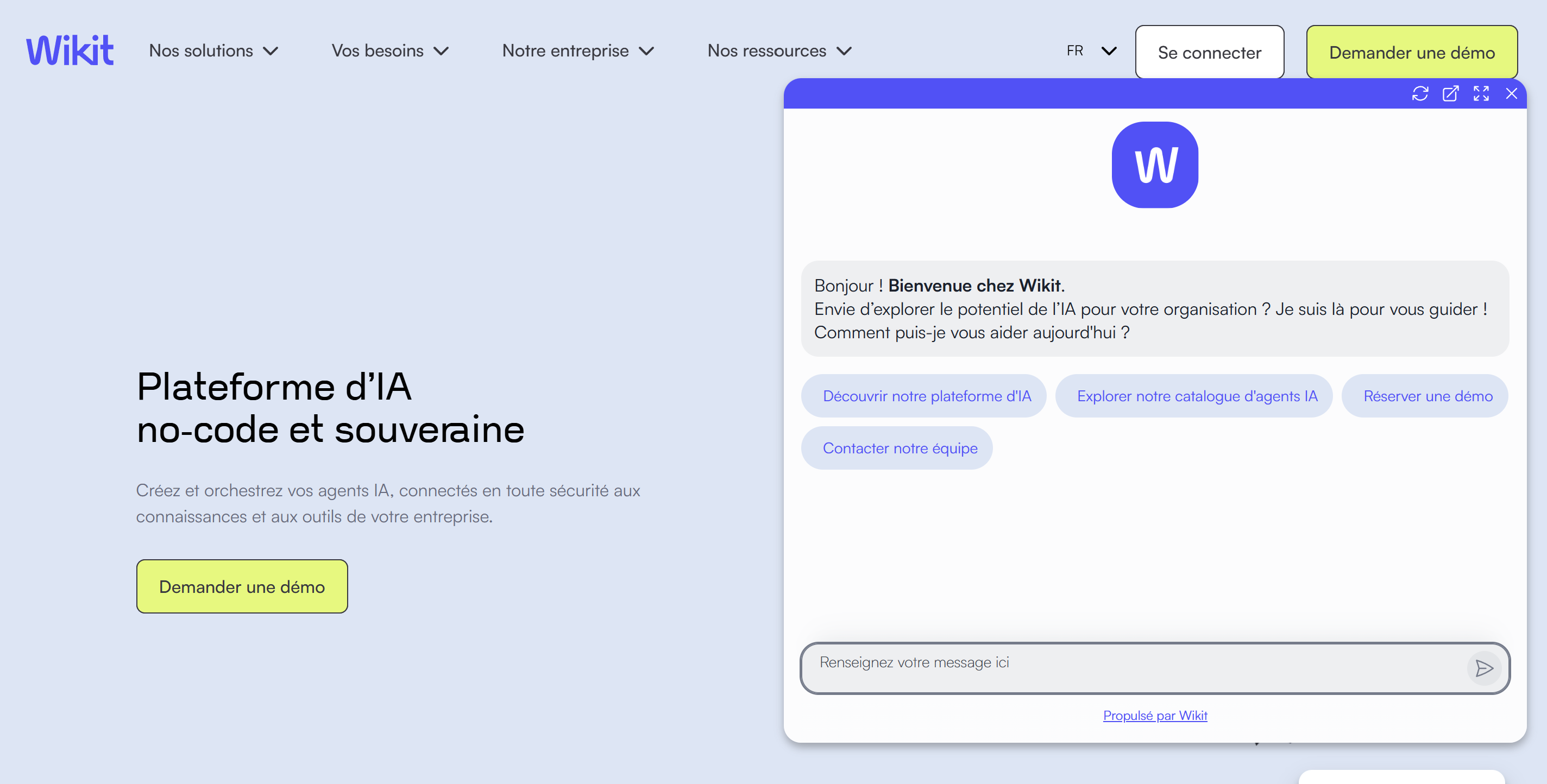
Once the code is integrated, refresh your web page. Your chatbot icon should appear at the defined location (by default, bottom right).
6. Test the Functionality
Click on the chatbot icon to verify that it opens correctly and test a few interactions to ensure everything works as expected.
Customizing the Appearance
You can customize the appearance of your chatbot by modifying the settings in the "Integration Options" interface:
- App: select the application to integrate.
- Button Position: define the location of the button (bottom right, bottom left, etc.)
- Icon URL: Customize the button icon with your own image.
- Button Size: adjust the size in pixels.
- Color: choose the button color to harmonize it with your graphic charter.
- Tooltip Text: customize the text that appears when hovering over the button.
Important Note: after each modification of the display settings, you must generate a new integration code and reintegrate it into your site.
Advanced: Passing Custom Variables
This feature allows you to pass contextual information to your App via custom parameters. These variables will be accessible in your Wikit application prompt via the Mustache syntax {{variable_name}}.
Use Cases
Custom parameters are useful for:
- Passing information about the logged-in user (name, role, ID)
- Passing data on the navigation context (current page, language, etc.)
- Enriching App responses with information specific to your site
Implementation
Initialization with parameters
<script type="text/javascript" src="[https://semantics-chat.wikit.ai/script.js](https://semantics-chat.wikit.ai/script.js)"></script>
<script type="text/javascript">
    const chatApi = wrapSemanticsChat({

        customDomain: 'your-domain',
        organizationSlug: 'your-organization',
        llmAppSlug: 'your-app-slug',
        // Your usual parameters

        // Adding custom parameters
        customParams: {
            userId: '12345',
            userRole: 'premium',
            currentPage: 'pricing'
        }
    });
</script>
Dynamic modification of parameters
You can modify parameters at any time during execution:
// Example: update during a page change
chatApi.setCustomParams({
    currentPage: 'checkout',
    cartTotal: '150'
});Important: setCustomParams() completely replaces existing parameters. Make sure to pass all necessary parameters with each call.
Usage in the prompt
Variables are accessible in your Wikit prompt with the Mustache syntax:
Hello {{userId}}, as a {{userRole}} user,
you are currently on the {{currentPage}} page.
Troubleshooting and FAQ
Why doesn't my chatbot's appearance change despite modifying the settings?
By changing the display settings, you have generated a new integration script. You must replace the old script on your site with this new code for the changes to take effect.
Why am I asked to log in to a Wikit account to use the chatbot?
To allow the use of the chatbot without authentication, you must configure the application in public mode. Check the "Access Status" parameter in the application settings and ensure it is set to "Public".
The chatbot is not displaying on my site. What should I do?
Check the following points:
- Make sure the code is correctly integrated into the
<body>section of your HTML page. - Check that your site does not have script blocking (Content Security Policy).
- Consult your browser's developer console to identify any errors.
Example integration code:
<!DOCTYPE html>
<html lang="en">

<head>
    <meta charset="UTF-8">
    <meta name="viewport" content="width=device-width, initial-scale=1.0">
    <title>Example Semantic Chat</title>
</head>

<body>
    <script type="text/javascript" src="https://semantics-chat.wikit.ai/chat-embed.js"></script>
    <script type="text/javascript">
        wrapSemanticsChat({
            organizationSlug: 'Wikit', // The organization identifier
            llmAppSlug: "my-slug", // The application identifier, optional.
            color: '#243469', // The background color of the chat button and the banner at the top of the window.
            chatWindow: {
                height: '80%', // The height of the window.
                width: '30%', // The width of the window.
                title: null, // The title of the iframe
            },
            openFullScreenOnOpenPanel: true, // Open the chat in full screen when the command panel opens
            chatButtonIcon: { // Chat button settings.
                url: null, // The URL of the chat button image.
                altText: 'Avatar image', // Alternative text for the image (accessibility).
                height: '50px', // Height of the chat button.
                width: '50px', // Width of the chat button.
                borderRadius: '50%', // Border radius of the chat button.
            },
            chatButtonTooltip: { // Display a text bubble next to the chat button.
                text: 'Chat with the assistant', // The message text
                backgroundColor: null, // The background color.
                textColor: null, // The text color.
                visibility: 'hidden', // The visibility of the bubble on mouse hover ('hidden') or all the time ('visible').
            },
            headerButtons: { // The accessibility text for the buttons at the top of the webchat window.
                color: '#fff', // Icon fill / stroke color
                closeIconDescription: 'Close window',
                launchIconDescription: 'Open in new tab',
                maximizeIconDescription: 'Maximize window',
                minimizeIconDescription: 'Minimize window',
            },
            opening: { // The state (open / closed) of the webchat upon arriving on the page. Note that automatic opening is not possible on mobile.
                mode: 'open', // 3 possible modes: open ('open'), closed ('close'), or open after a delay ('delay').
                delay: 0, // The delay in milliseconds for opening the webchat.
                memorize: true, // Memorize the opening state of the webchat.
                animations: {
                    open: {
                        duration: 350, // The duration of the animation in milliseconds.
                        easing: 'ease-in-out', // The animation effect.
                    },
                    maximize: {
                        duration: 350, // The duration of the animation in milliseconds.
                        easing: 'ease-in-out', // The animation effect.
                    },
                    minimize: {
                        duration: 350, // The duration of the animation in milliseconds.
                        easing: 'ease-in-out', // The animation effect.
                    },
                }
            },
            position: {
                right: '1rem',
                left: 'auto',
                bottom: '1rem',
            },
        });
    </script>

</body>

</html>