
ServiceNow ITSM Connector
The ServiceNow ITSM connector allows users to create and look up ServiceNow tickets directly from the Wikit Semantics chat, without leaving their usual interface.
Prerequisites
Before configuring this connector in the Wikit Connect console, make sure the following are in place in your ServiceNow instance:
- The ServiceNow REST API is enabled and accessible from Wikit servers.
Configuration
| Field name | Format / Type | Required | Comment |
|---|---|---|---|
| Instance URL | URL | ✅ | Base URL of your ServiceNow instance (e.g. https://yourcompany.service-now.com) |
| Record URL | URL | ✅ | Base URL to access individual records (e.g. https://yourcompany.service-now.com/nav_to.do?uri=) |
| Ticket list URL | URL | ✅ | URL of the incident list view filtered on unresolved tickets (e.g. https://yourcompany.service-now.com/nav_to.do?uri=incident_list.do?sysparm_query=state!=6) |
| Username | Free text | ✅ | Username of the service account used to call the ServiceNow API |
| Password | Password / Token | ✅ | Password associated with the service account |
| Enable OAuth | Yes / No | ➖ | Enable this option if your ServiceNow instance uses OAuth 2.0 authentication (default: No) |
| OAuth Client ID | Free text | ➖ | Required only if OAuth is enabled — client ID of the OAuth application registered in ServiceNow |
| OAuth Client Secret | Password / Token | ➖ | Required only if OAuth is enabled — secret associated with the OAuth application |
| Metadata field key | Identifier | ➖ | Key used to store Wikit metadata in tickets (default: servicenow) |
| User identification field | Value list | ➖ | Field used to match Wikit users to ServiceNow users. Possible values: email, user_name (default: email) |
| Test account | Free text | ➖ | Wikit account identifier used for connection tests (default: WIKIT). Replace this value with an email address if the identification field is set to email |
💡 Fields marked ✅ are required for the connector to work.
How the Connector Works
Ticket Creation
From the Wikit Semantics chat, users can create a ServiceNow ticket. The connector collects the necessary information (title, description, category, etc.) through the conversation, then calls the ServiceNow API to create the record. Once the ticket is created, a direct link to the ServiceNow record is returned to the user.
ServiceNow Categorization in Wikit Semantics
If you wish to set up a categorization system in your Wikit Semantics application, please follow the online documentation while respecting the ServiceNow API format: https://docs.wikit.ai/wikit_semantics/categorization_of_itsm_tickets
In the connector Categories tab, create one row for each ServiceNow category you want to suggest to users:
| Field | Value to enter |
|---|---|
| Field name | category |
| Value | Exact ServiceNow category name |
For sub-categories, use the same approach with the corresponding ServiceNow field:
- the format for the category:
category - the format for the sub-category:
subcategory
Here is an example mapping table to configure in Wikit:
| Label displayed in Wikit | ServiceNow variable | ServiceNow value |
|---|---|---|
| Software | category | software |
| OneDrive | subcategory | onedrive |
| Phone | category | hardware |
How to find the technical ServiceNow values? In ServiceNow, open an existing ticket, right-click on the Category field and select Show value to see the technical value expected by the API. Preserve the exact casing and spelling configured in ServiceNow.
You can also use redirection to an external form only by simply enabling the option.
User Mapping
The connector matches Wikit users to ServiceNow users via the User identification field. Two values are supported:
email— the Wikit user's email address is matched against theemailfield in ServiceNow (default)user_name— the Wikit username is matched against theuser_namefield in ServiceNow
Note: if your organization uses identifiers in
firstname.lastnameformat rather than email addresses in Wikit, set this field touser_nameand ensure the values match exactly between both systems.
If there is a mismatch between Wikit and ServiceNow identifiers, tickets may be created without an associated requester.
Ticket Lookup
Users can also look up their existing tickets from the chat. The connector queries the ServiceNow API and returns the list of tickets matching the available filters (status, date, etc.).
Troubleshooting & FAQ
Is OAuth authentication mandatory?
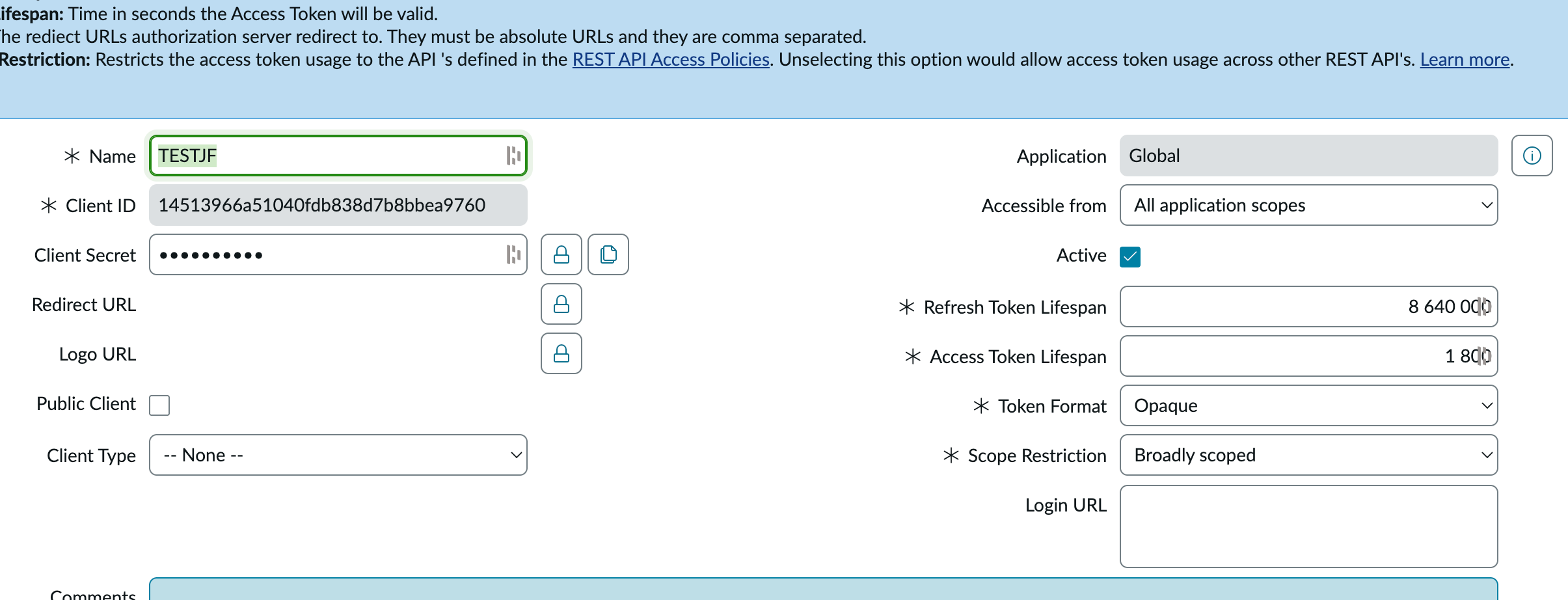
No, username/password authentication (Basic Auth) is sufficient. OAuth is recommended if your security policy requires it or if your ServiceNow instance enforces this authentication mode. In that case, create an application in System OAuth > Application Registry and set the Scope Restriction to Broadly Scoped.
What is the "Test account" field and should I change it?
This field is used to verify that the connection to ServiceNow works correctly when saving the configuration. By default, the value WIKIT is used. If your instance does not recognize this identifier, replace it with the identifier (email or username) of a real account in your ServiceNow, consistent with the chosen identification field.
Which ticket categories are available in the Wikit chat?
The categories and sub-categories offered during ticket creation correspond to those configured in your ServiceNow instance. If an expected category does not appear, verify that it is active in ServiceNow and that the service account has the rights to access it.
How do I create a "Computer" type service account in ServiceNow?
- In ServiceNow, go to User Administration > Users
- Click New
- Enter a username (e.g.
wikit_api) - Check the Web service access only box — this creates a Computer account with no access to the UI
- Save, then add the required roles in the Roles tab:
rest_service,sn_incident_read,sn_incident_write
How do I check or add roles to a service account?
- Go to User Administration > Users and open the account
- Scroll to the Roles tab at the bottom of the form
- Verify that
rest_service,sn_incident_read, andsn_incident_writeare present - If a role is missing, click Edit to add it
How do I find the user_name of a ServiceNow account?
- Go to User Administration > Users
- Open the account
- The User ID field is the
user_namevalue to use in Wikit - You can also right-click the field and select Copy sys_id if you need the system identifier